A set of guides covering features you may need to review, update, or use more frequently during this period — from managing departures and schedule changes to leave policies, requests, and letters.
Get help
Need to speak to someone?
Four ways to get support — choose the one that works best for you.
Practical reading for HR leaders, managers, and employees — covering wellbeing, preparedness, and policy.
📋
HR Leader Guide
Supporting Your People During Conflict & Crisis — practical guidance on check-ins, manager support, warning signs, leave flexibility, and looking after yourself.
10 stepsUAE Labour Law compliantFinance → PayrollAdmin only
What you will achieve
Record an employee's departure, calculate their full final settlement — gratuity, leave encashment, pro-rated salary — review the breakdown, and submit the transaction.
Part 1 — Navigate to the employee
1
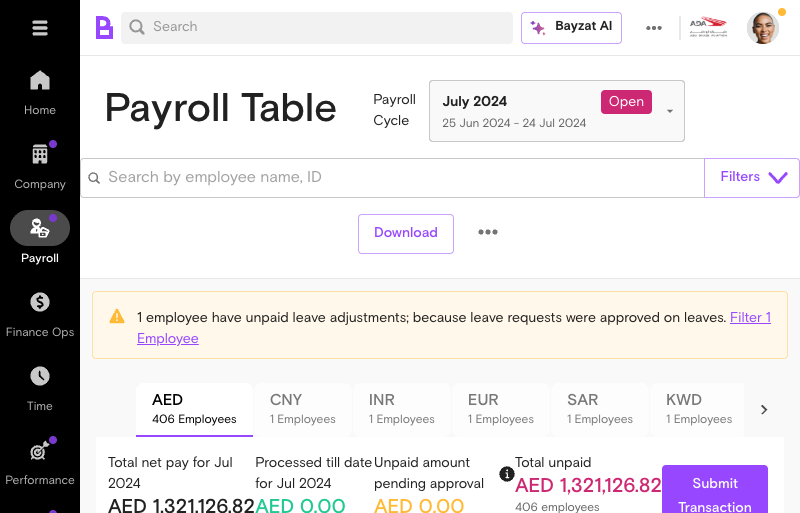
Go to Finance → Payroll Table
Click Finance in the left sidebar → Payroll.
Finance→Payroll→Payroll Table
Finance menu and Payroll Table navigation
2
Find the employee
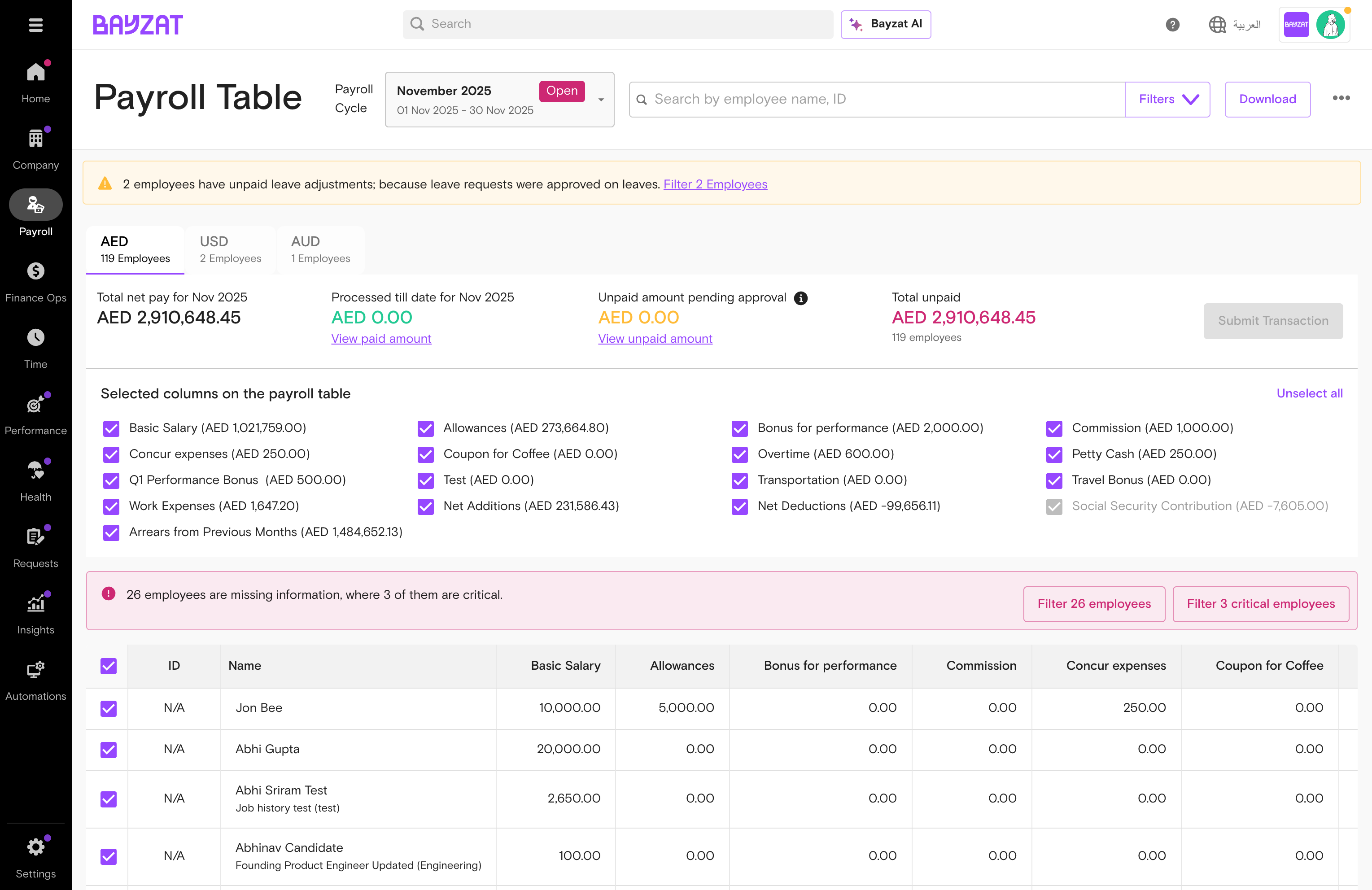
Select the currency tab (e.g. AED). Click the employee's name.
💡 Press CMD+K / CTRL+K from anywhere to search instantly.
AED tab→Find employee→Click name
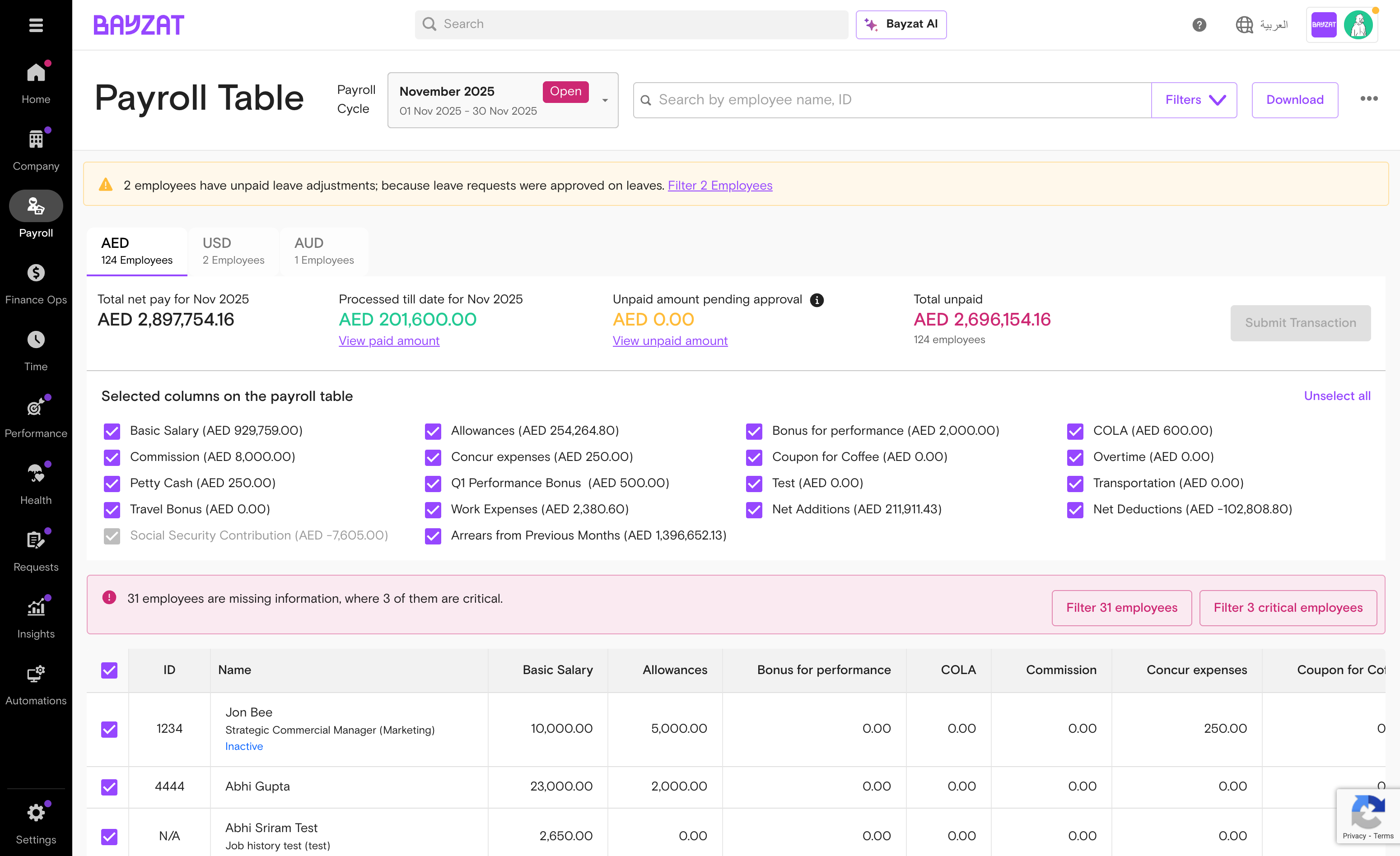
Payroll Table — find the employee
Part 2 — Open the End of Service calculator
3
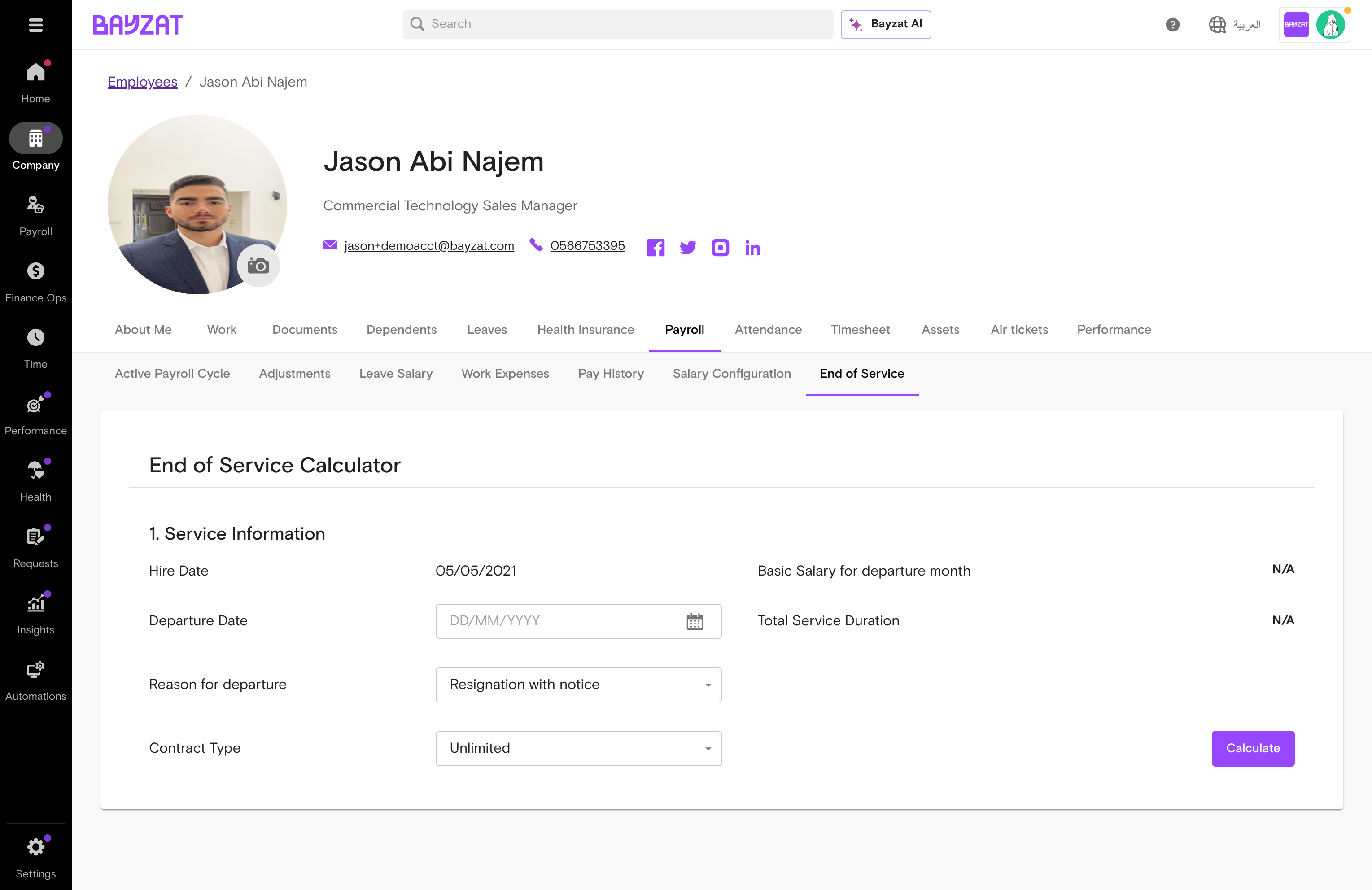
Open the End of Service tab
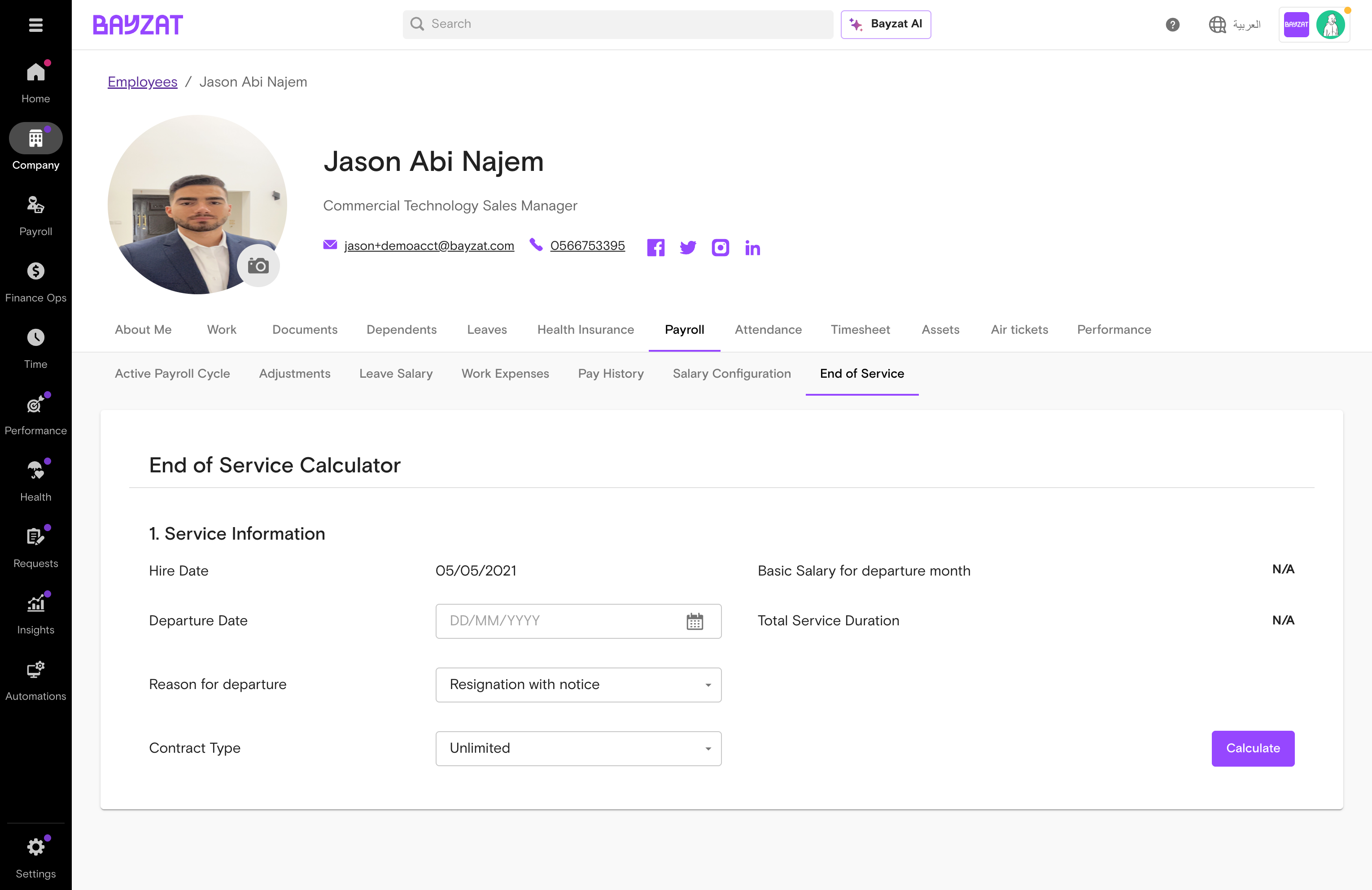
Employee profile → Payroll tab → End of Service. Admin-only.
⚠ Only visible for active employees. Complete all calculations before offboarding.
Employee profile→Payroll tab→End of Service
End of Service calculator interface
Part 3 — Enter departure details
4
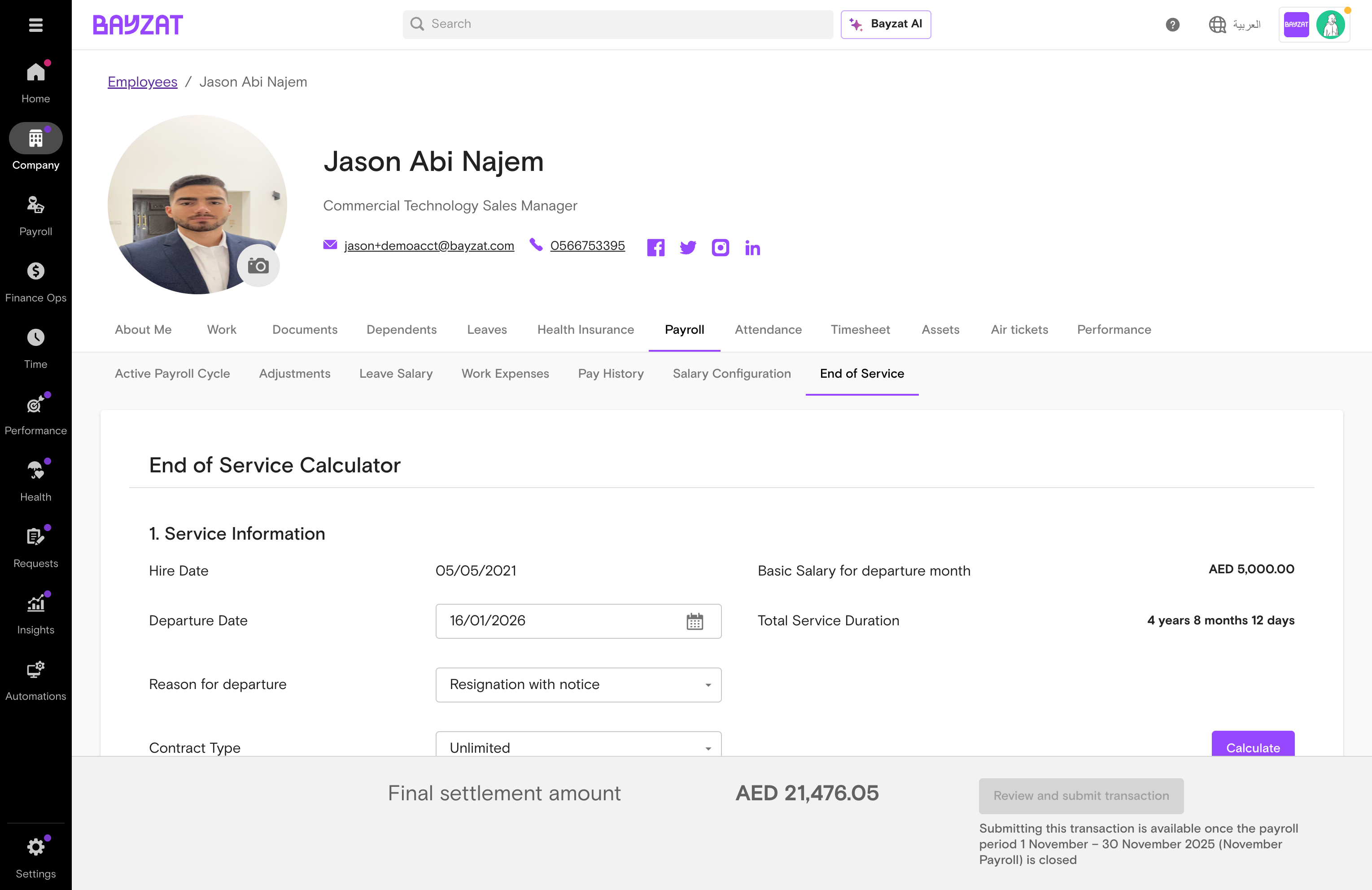
Set the departure date
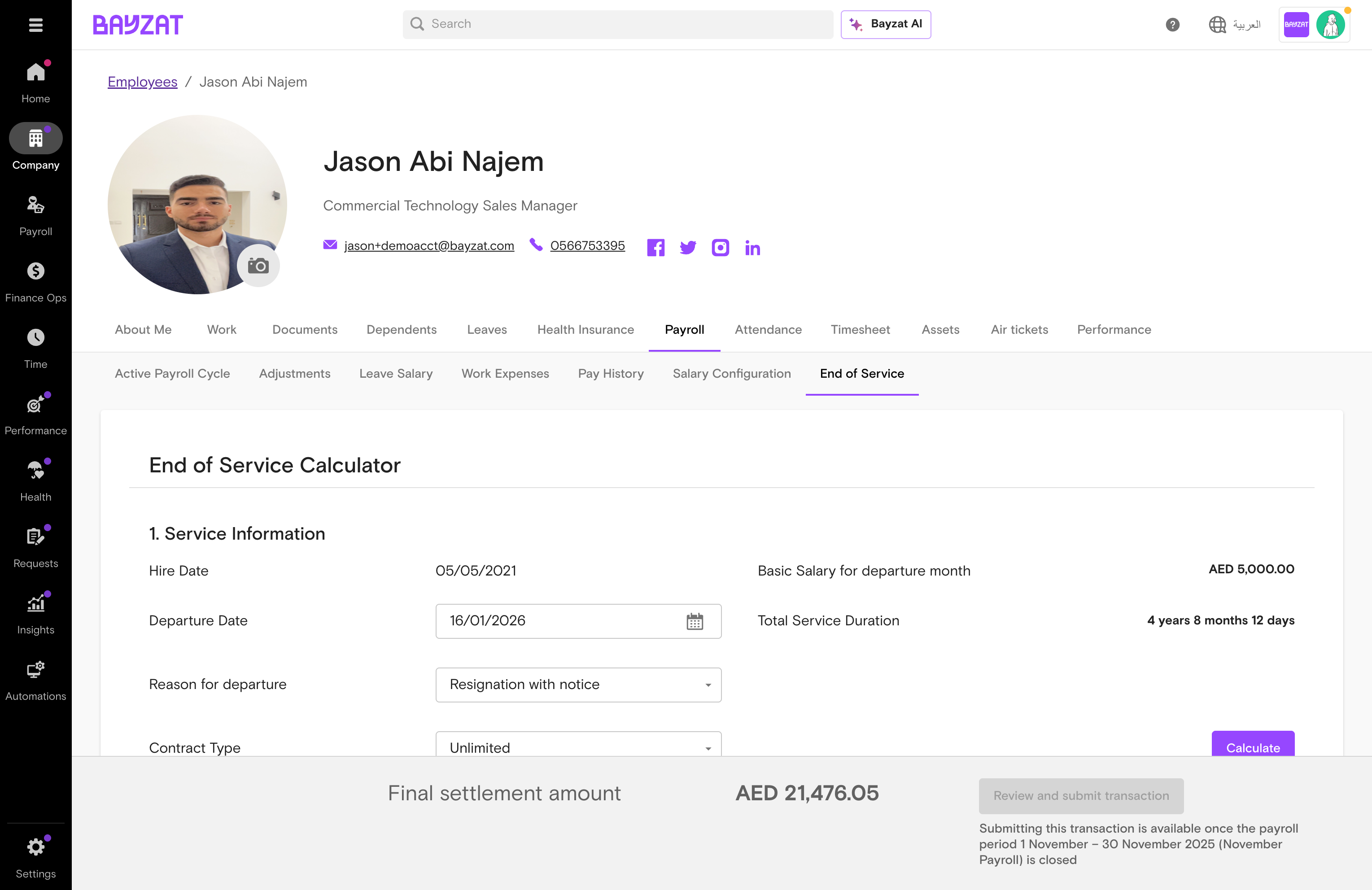
Select the employee's last working day. Service duration auto-calculates.
⚠ Final transaction only available once that payroll cycle is closed.
5
Select the departure reason
Termination by employer — full gratuity from day 1
Resignation — reduced gratuity if under 5 years
End of Contract — limited-contract employees
6
Select the contract type
Choose Unlimited or Limited contract.
Part 4 — Calculate and review
7
Calculate and review results
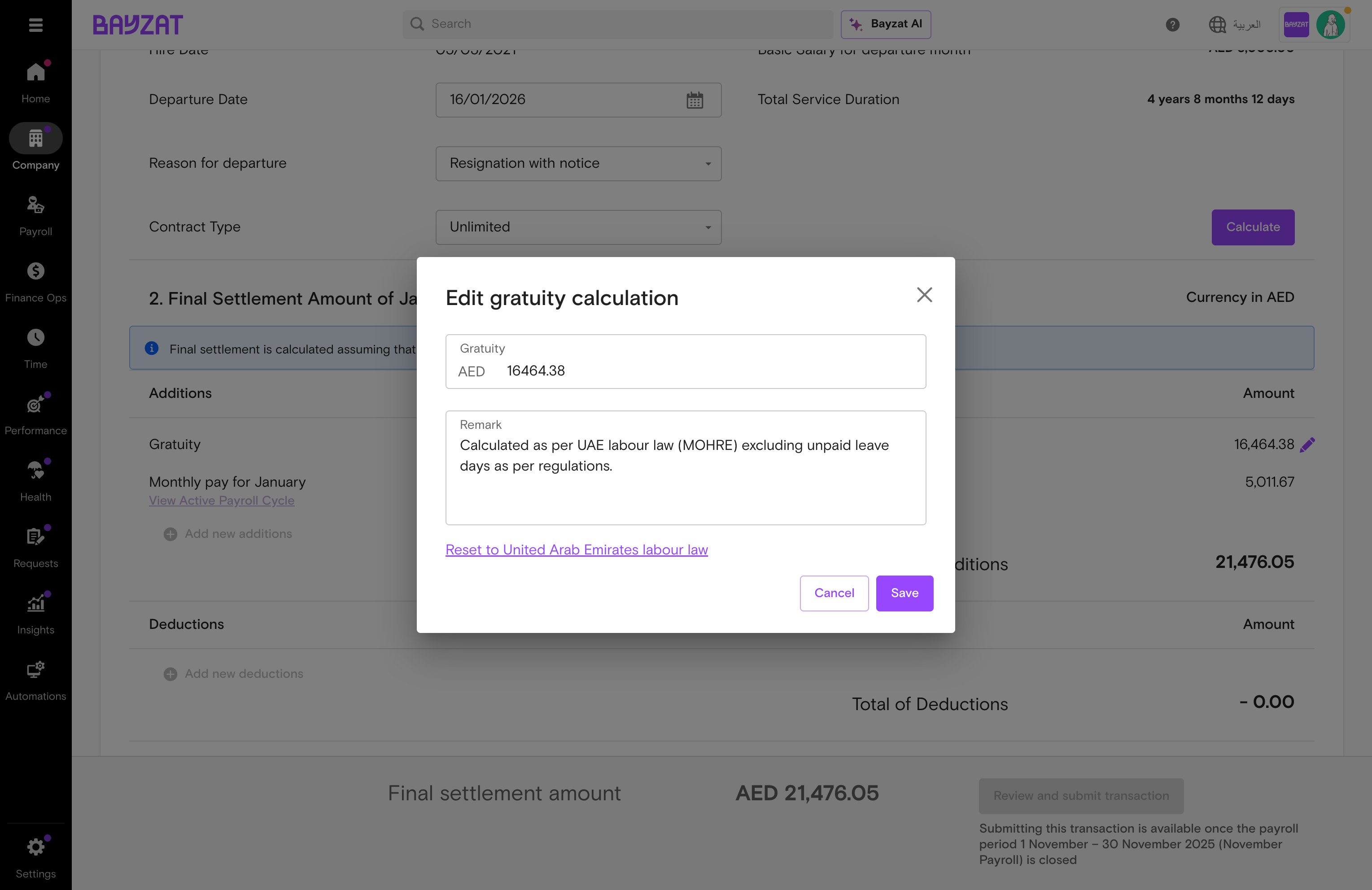
Click Calculate. Results show: gratuity, leave encashment, pro-rated monthly pay, and total settlement.
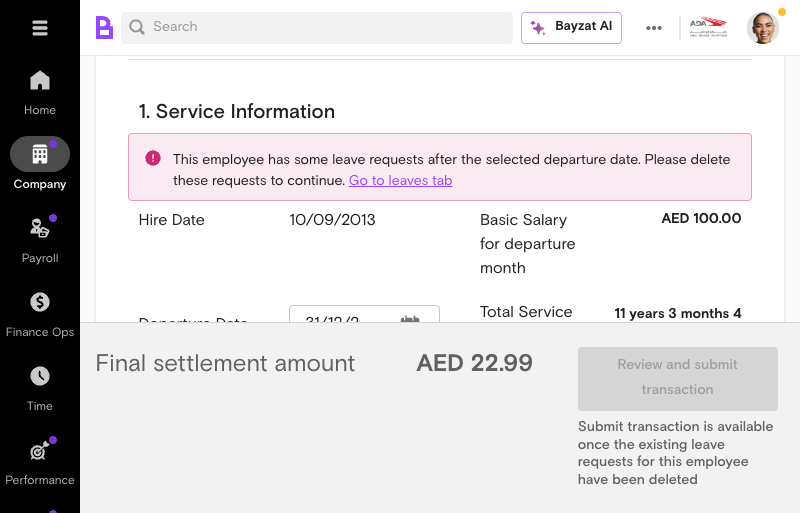
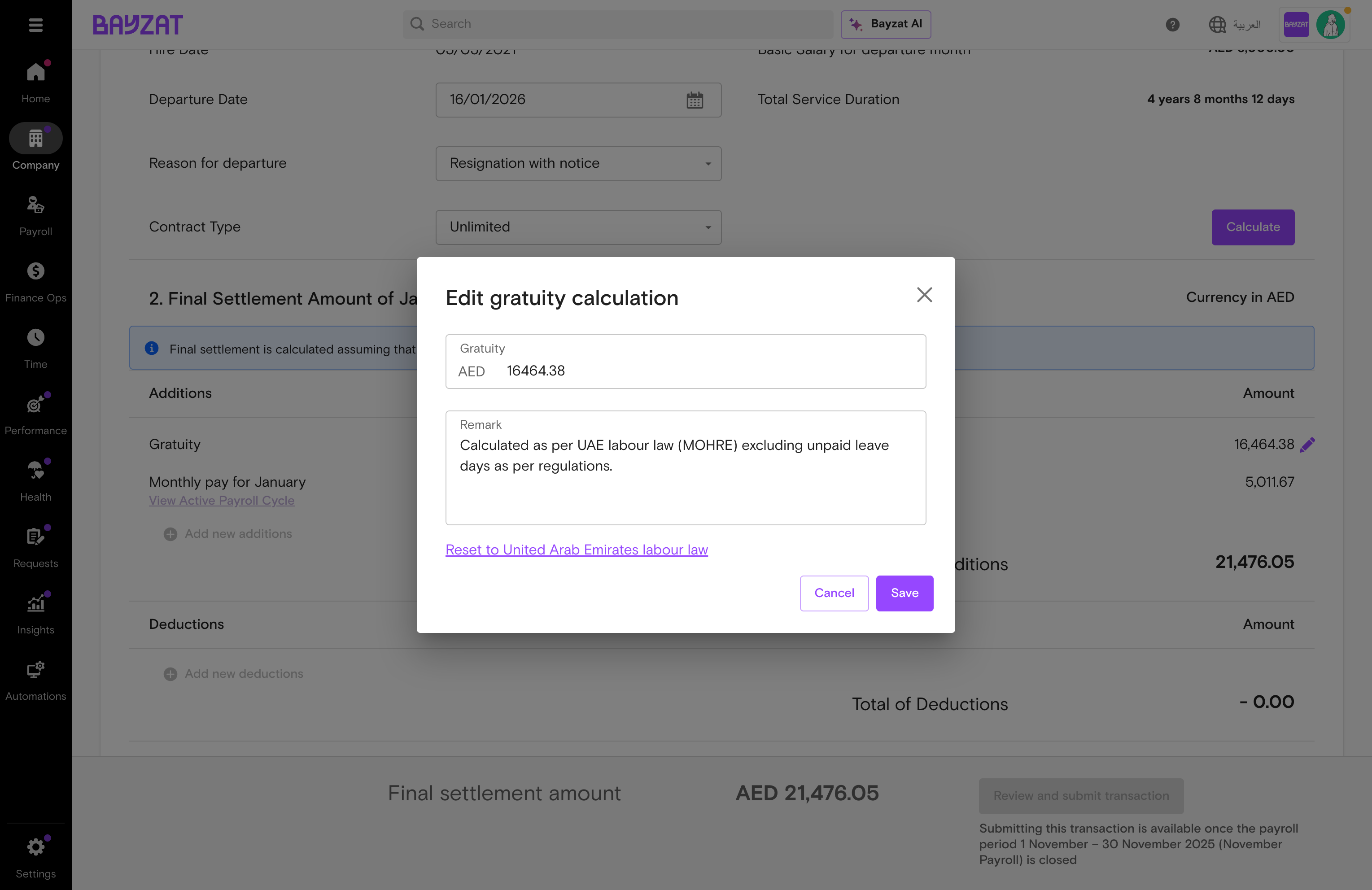
Preview a gratuity calculation before finalising any termination — understand the formula, check unpaid leave deductions, and adjust manually if needed.
Steps
1
Navigate to the EOS calculator
Finance → Payroll Table → Employee → Payroll tab → End of Service.
Download a full settlement breakdown for audit, finance reconciliation, or employee records.
Steps
1
Complete and submit the settlement first
Export is only available after the settlement has been processed and approved.
2
Export the settlement breakdown from the End of Service tab
After processing the final settlement, export the end-of-service calculation details from the employee's End of Service tab. The export includes the full breakdown — gratuity, leave encashment, deductions, and net settlement amount — suitable for audit trails and employee records.
Finance→Payroll Table→Employee→End of Service→Export breakdown
Complete settlement
3
Run gratuity liability reports via Payroll Table
Go to Payroll → Payroll Table. Click the three-dot menu (⋮) next to the Download button to access Gratuity Reports. Select a date range or choose monthly granularity to generate gratuity liability reports across all employees for the chosen period.
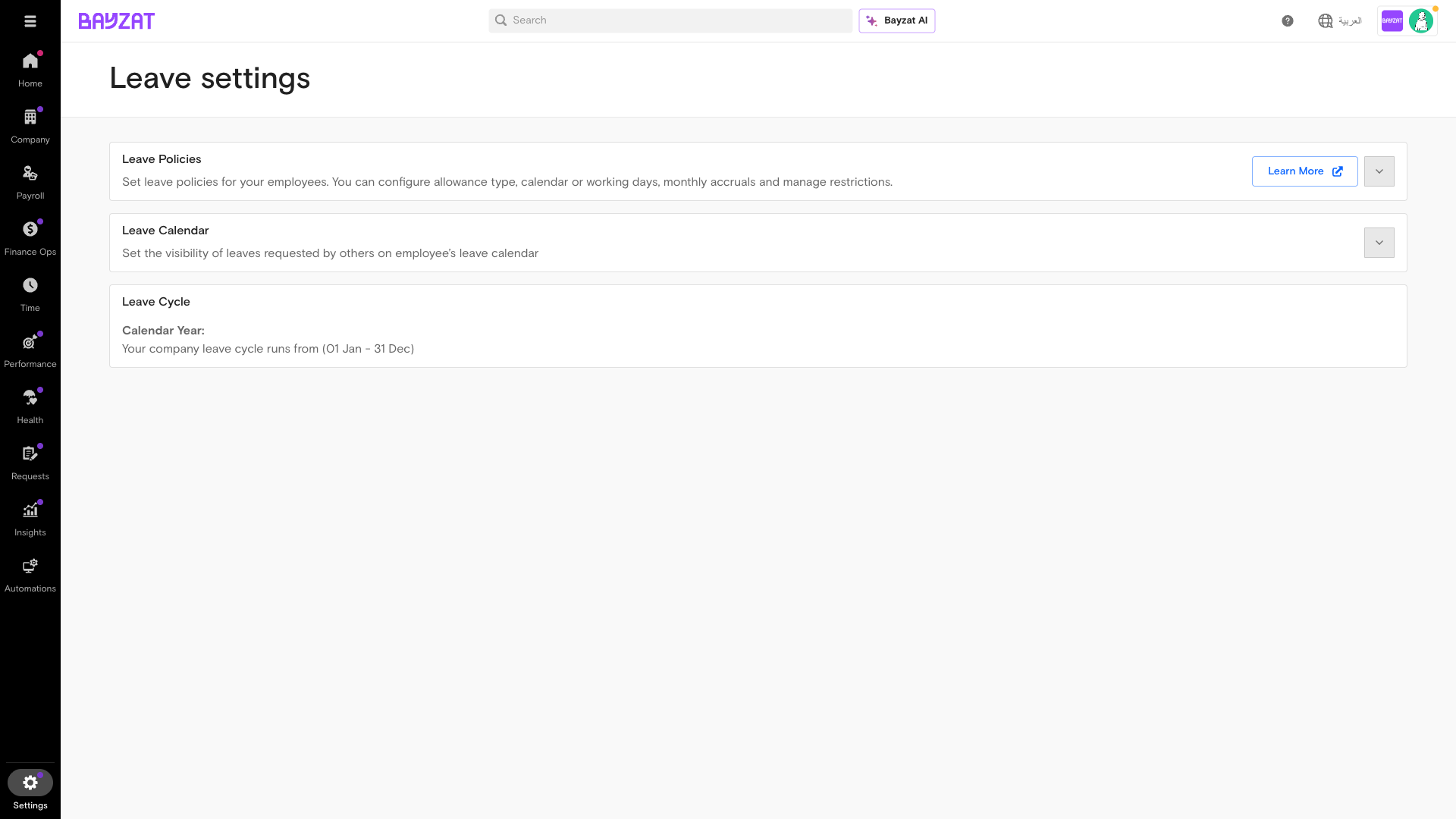
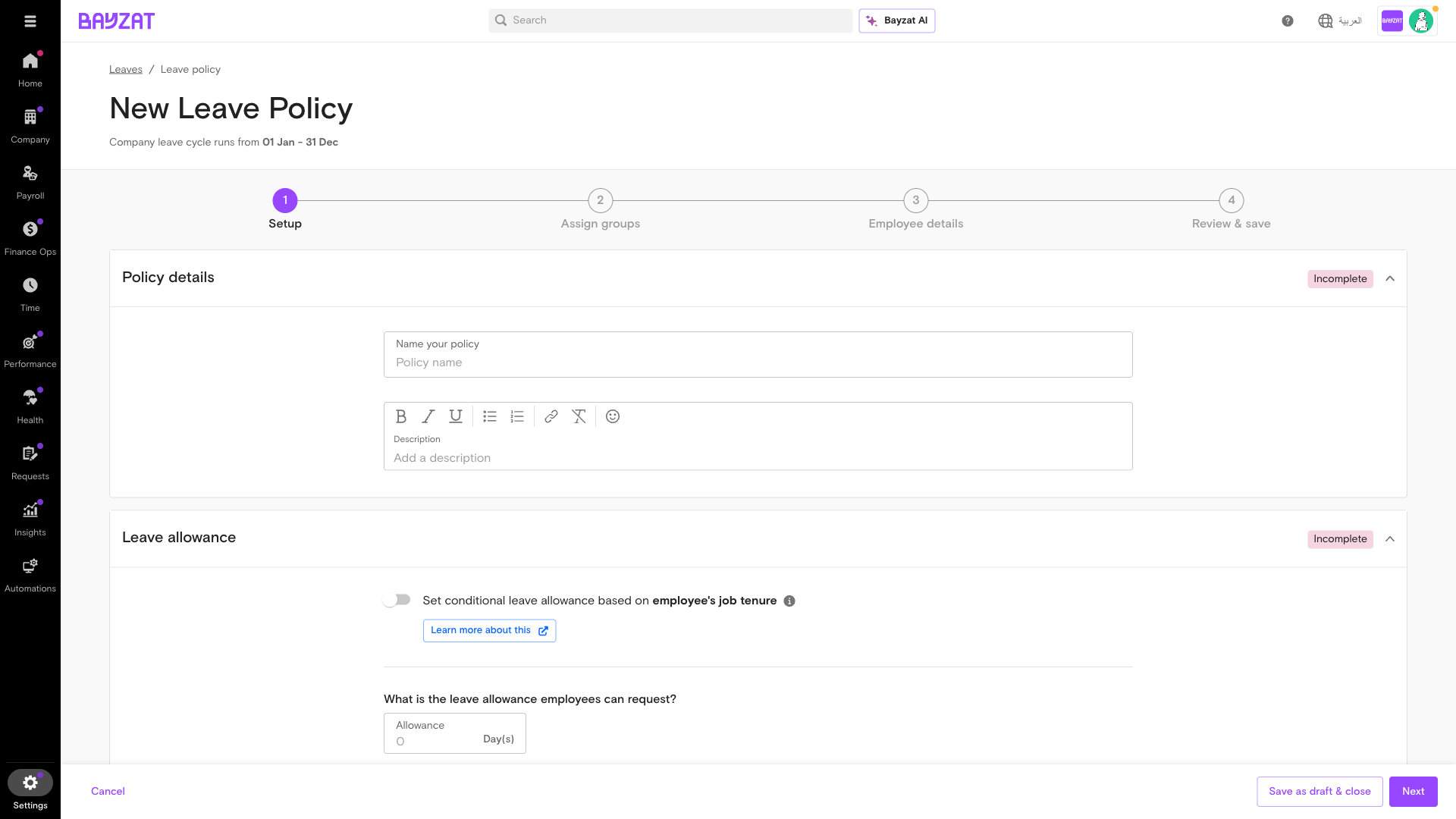
Set up a new Unpaid Leave type so that when employees take unpaid leave, the deduction automatically flows through to payroll — no manual calculation required.
Set payment type to Unpaid — this triggers automatic payroll deductions.
Create leave policy form
3
Set pay type to Unpaid, configure the deduction formula, and set accrual to None
Set Pay Type to Unpaid — this triggers the automatic payroll deduction when leave is approved. Next, configure the deduction formula via Settings → Payroll → Daily Wage Calculation → Unpaid leave deduction. Choose your calculation base (Calendar days, Working days, or Custom days — most UAE & KSA companies use 30 custom days to align with labour law) and select whether the daily rate uses Basic Salary or Basic + Allowances. Finally, set accrual to None — employees do not earn unpaid leave over time. A large maximum balance means there is no cap on how many days can be taken.
4
Assign employees to the policy
Add employees or groups in Step 2 of the wizard.
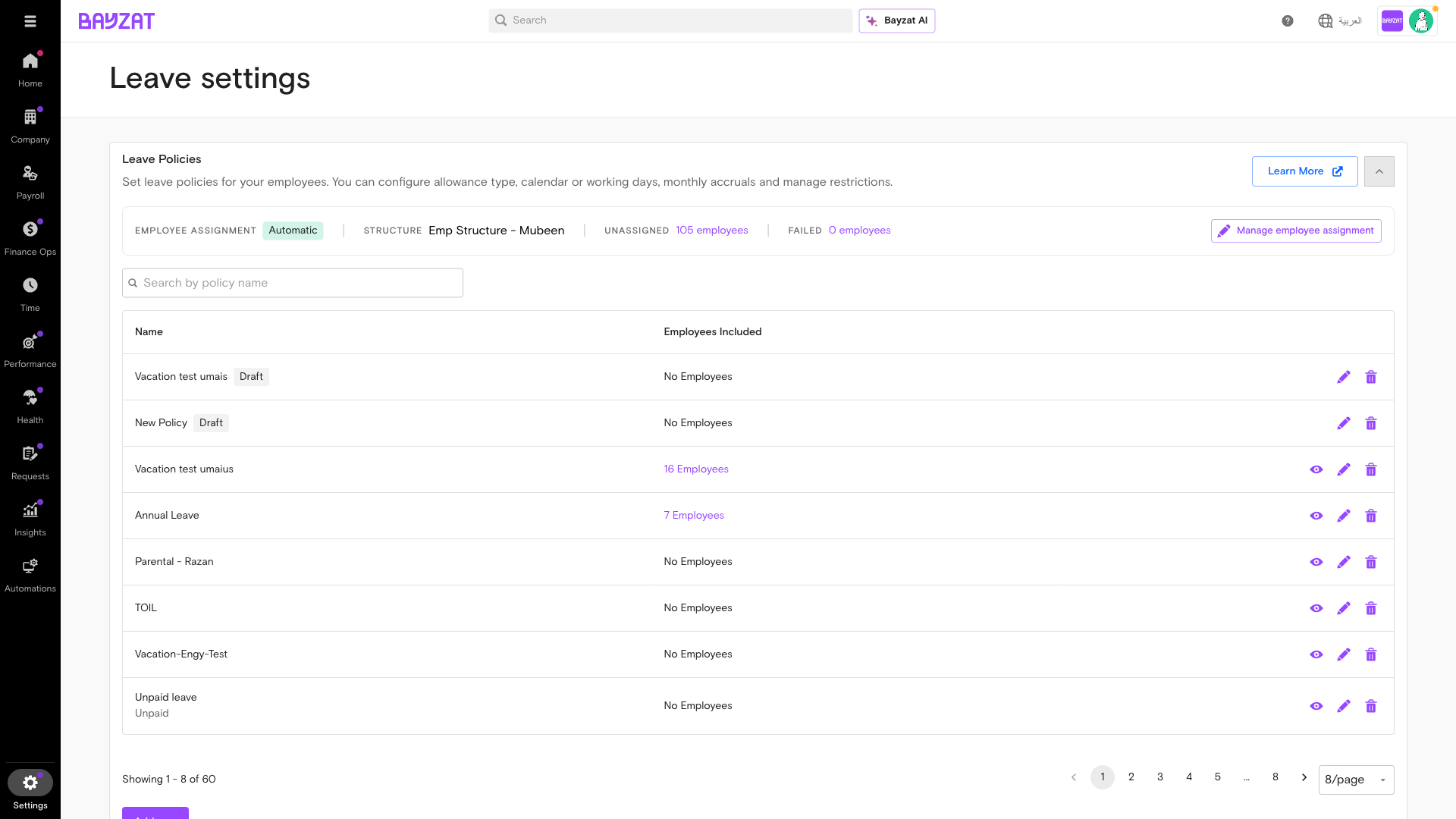
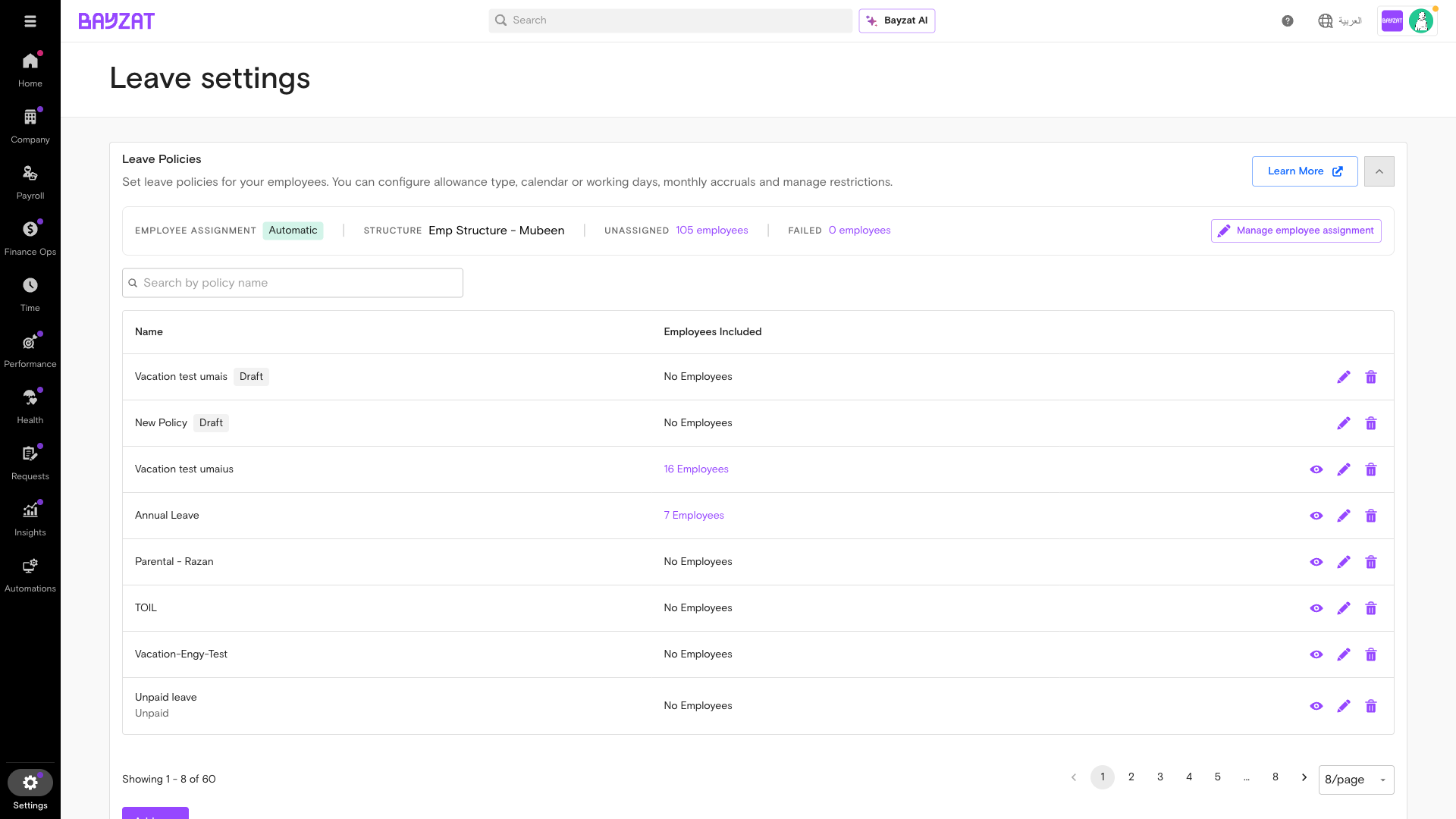
Leave policies
5
Confirm payroll module is linked
Deductions only appear in payroll if the module is active and the employee has a salary configured.
Once employees are assigned, you cannot change the payment type. Create a new policy if needed.
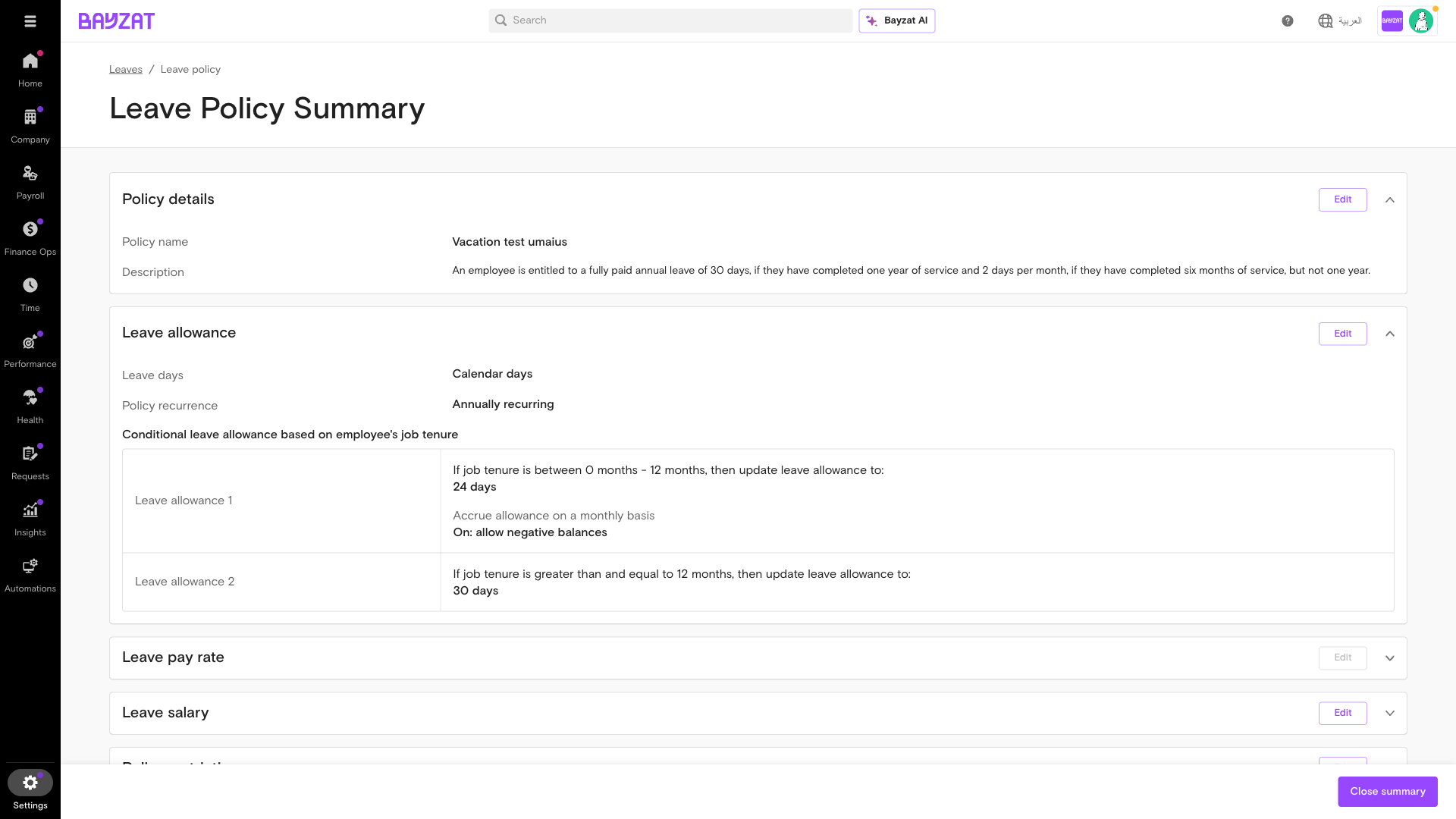
Within the accrual settings section, locate the 'Pause monthly accrual' toggle and switch it on. A secondary field appears immediately below — select which leave types trigger the pause. Choose your Unpaid Leave policy. This toggle is critical: without it, annual leave continues to accrue even while an employee is on unpaid leave.
Leave policy — accrual and allowance settings. Toggle 'Pause monthly accrual' in this section and select Unpaid Leave as the trigger.
3
Save and verify
Test with an employee on unpaid leave — their balance should not increment at month end.
Requires monthly accrual to be configured on the annual leave policy. Contact your CSM if using annual accrual.
Submit an unpaid leave request on behalf of an employee, ensuring the deduction flows automatically to that month's payroll.
Steps
1
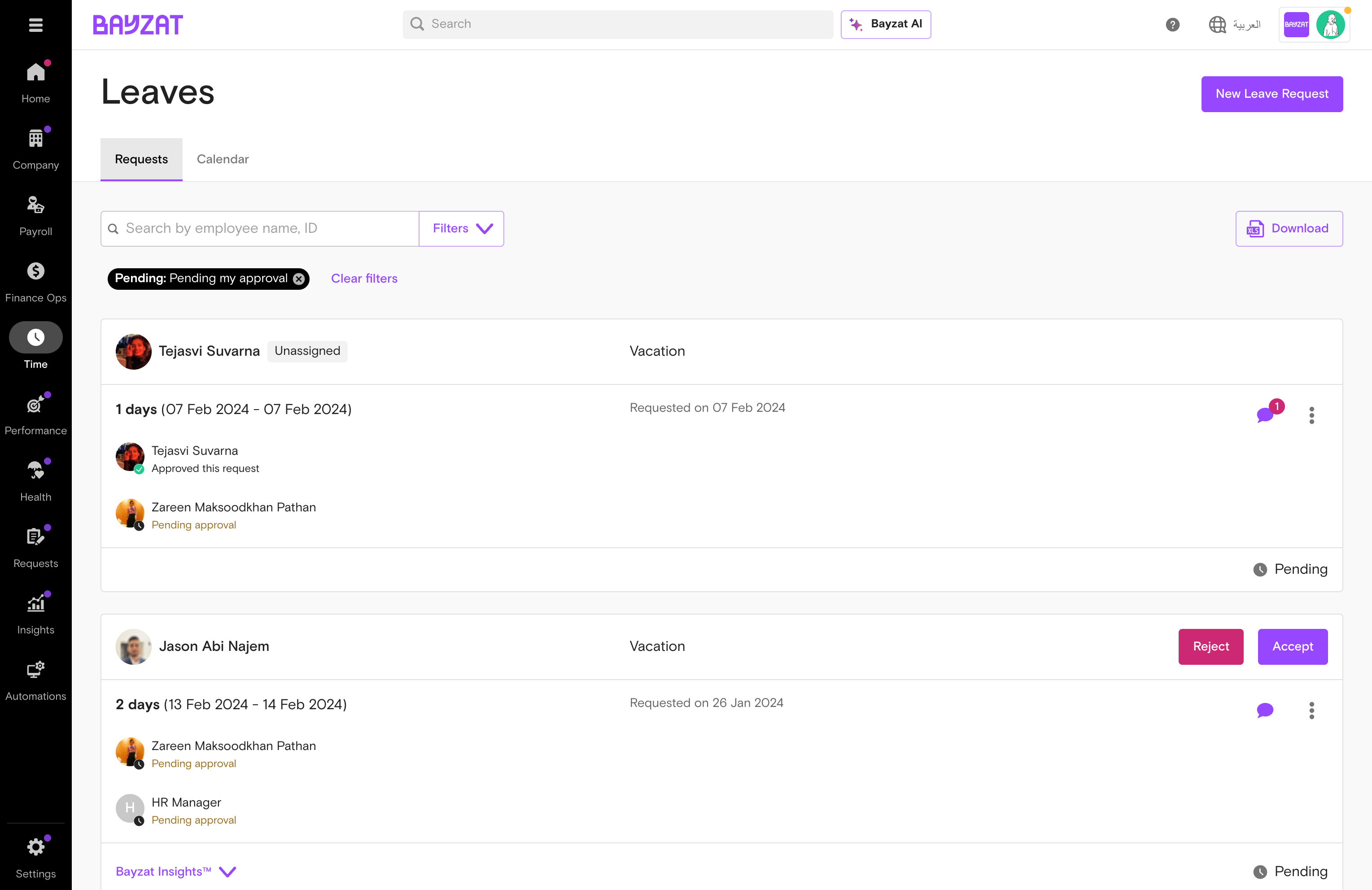
Go to Employee Leaves
Time → Leaves → Employee Leaves → New Leave Request.
Time→Leaves→Employee Leaves
Employee Leaves list view
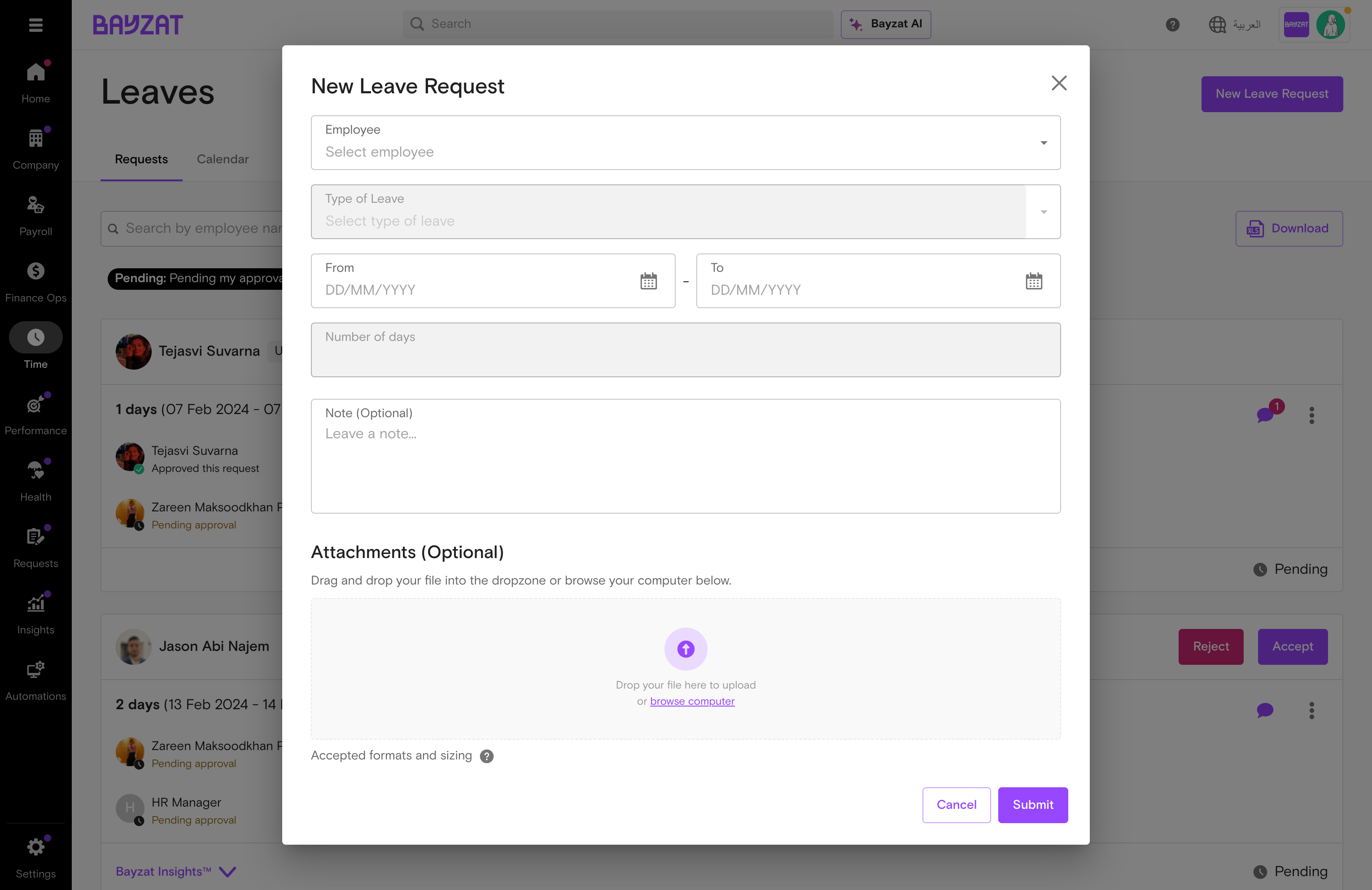
2
Select the employee
HR admins can create leave for any employee.
Create leave request form
3
Choose Unpaid Leave as the leave type
Select the unpaid leave policy from the dropdown. If missing, assign the employee to the policy first.
4
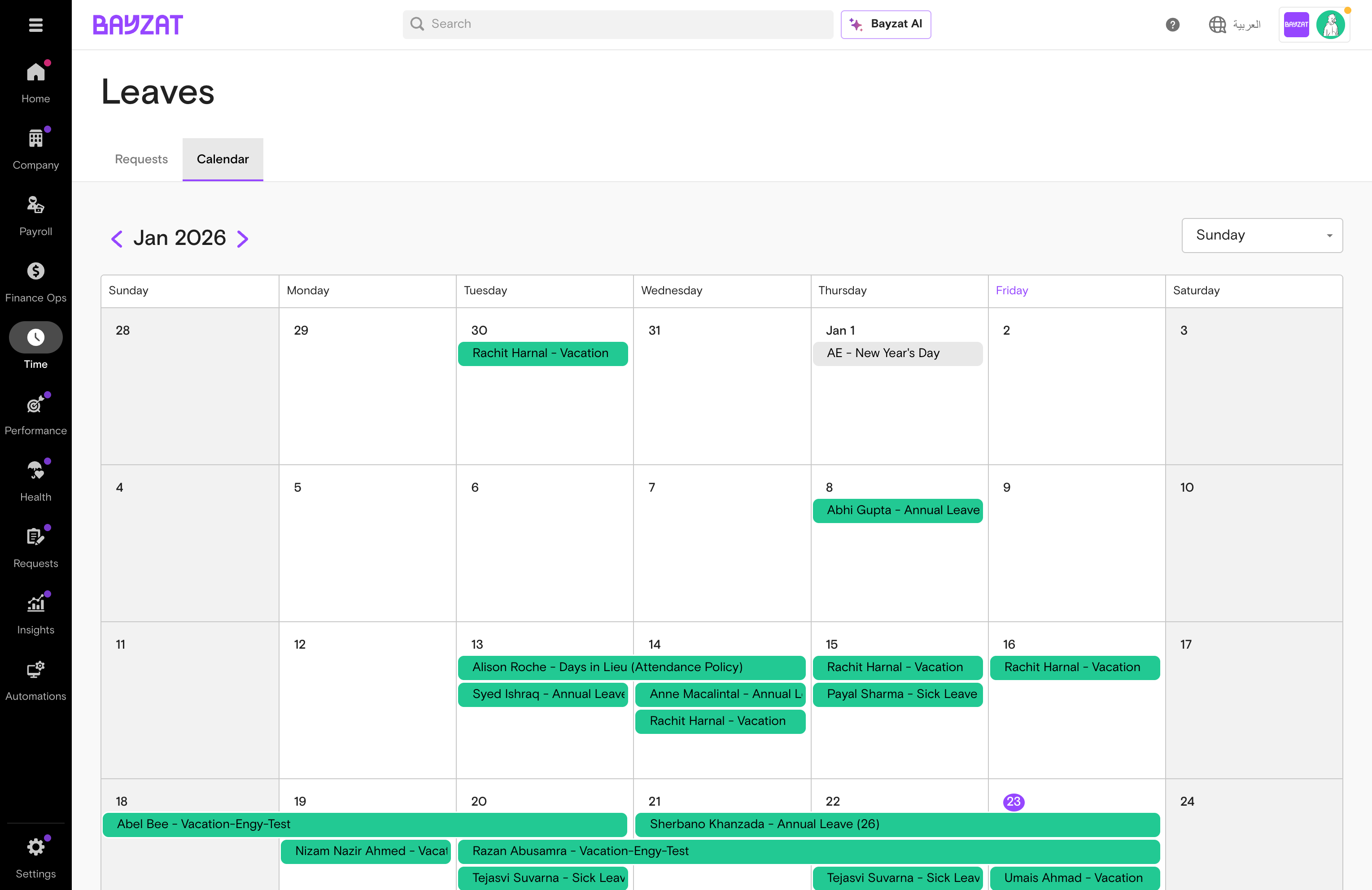
Set the date range
Select the start and end dates using the date picker. The system counts only working days based on the employee's configured work week — weekends and public holidays are excluded automatically based on the leave policy settings.
Calendar view
5
Submit and check payroll
Confirm the deduction appears in the Payroll Table.
Payroll→Payroll Table→Employee→Check deductions
💡 The exact deduction calculation depends on your company's daily wage configuration — rates vary per organisation and are not fixed. Contact your Bayzat CSM to confirm the exact formula applied to your account.
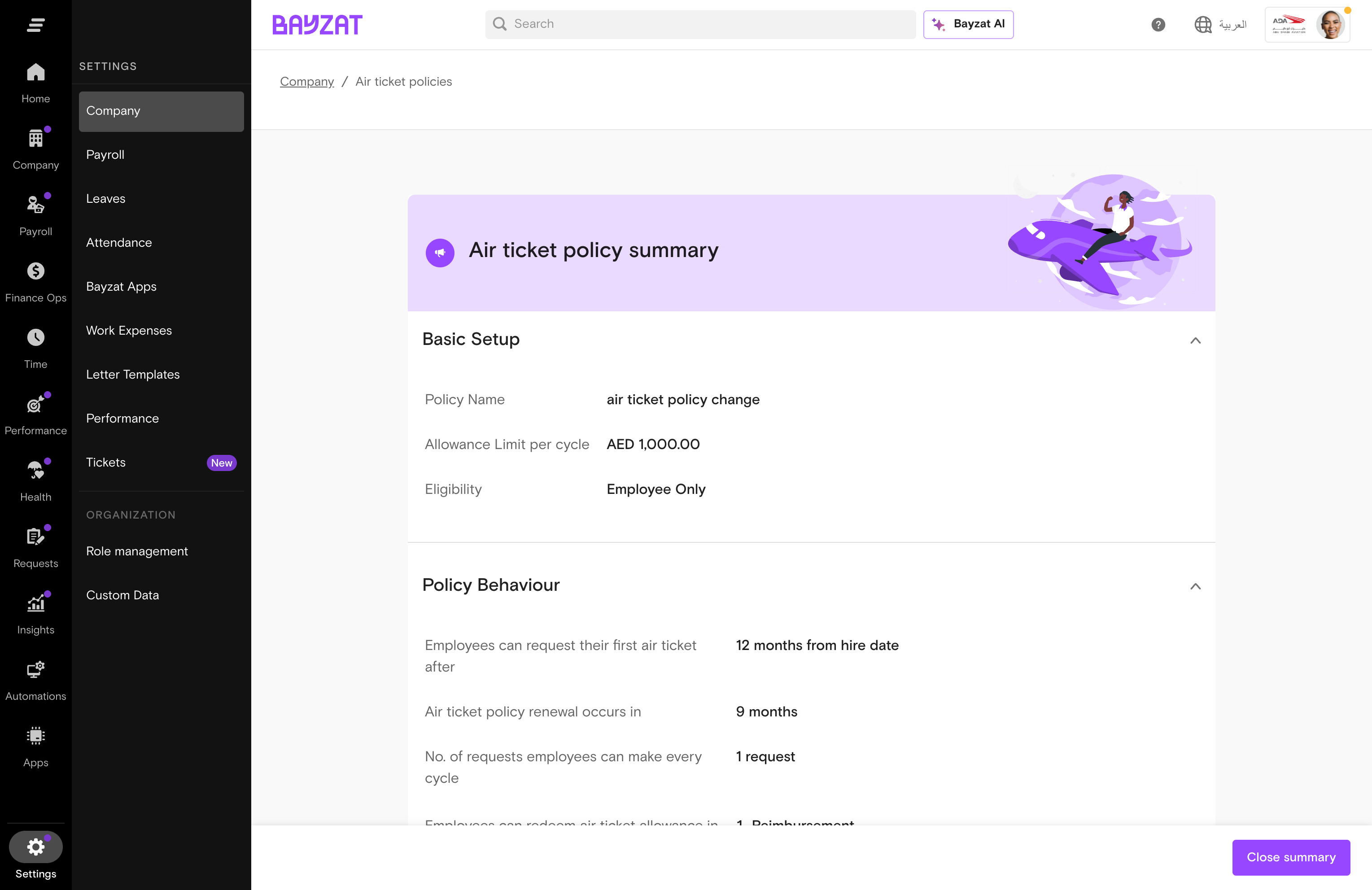
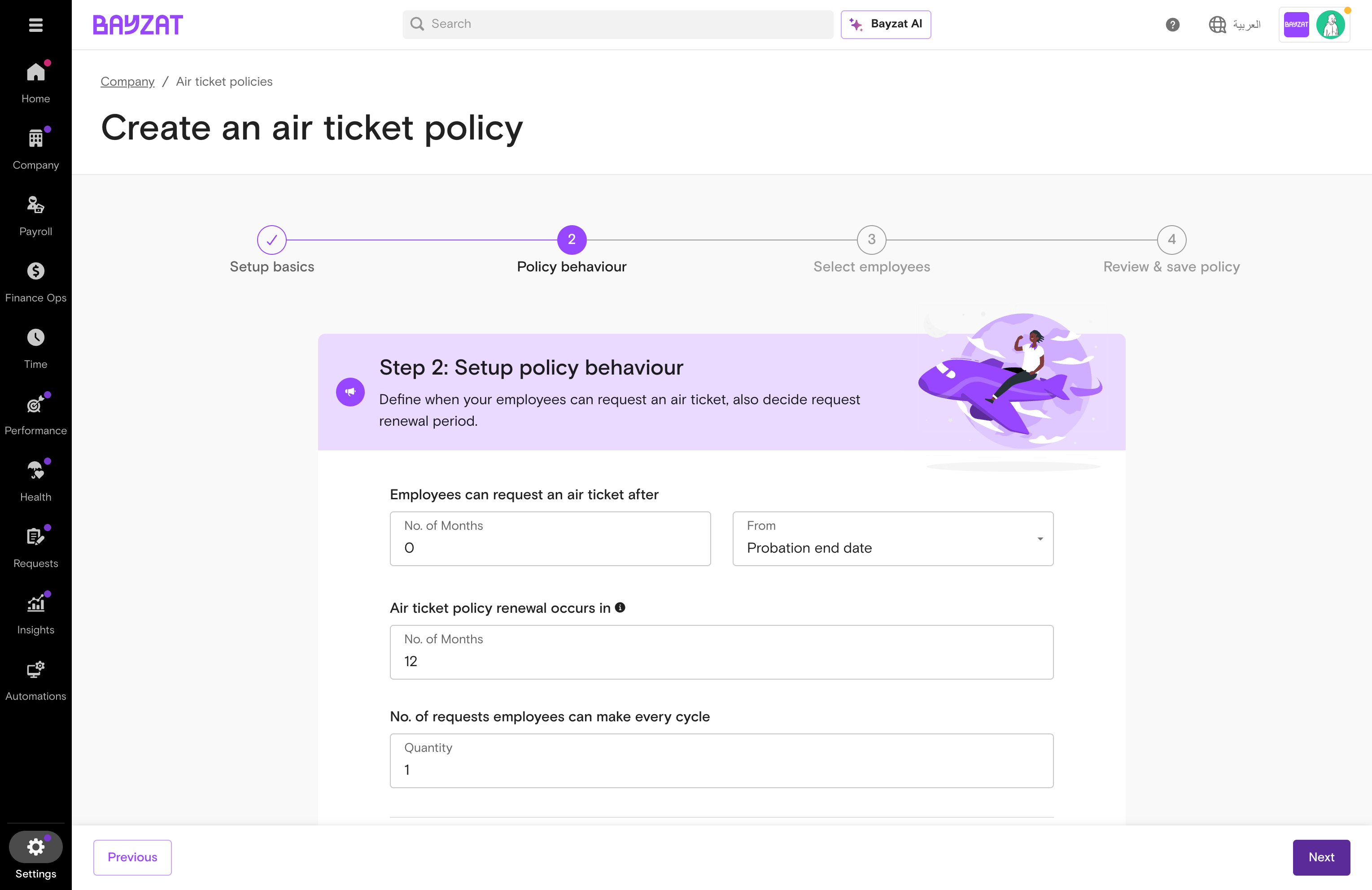
Temporarily adjust your air ticket entitlement cycle from annual to biennial — giving employees the benefit while reducing the company's short-term cash exposure during this period.
Steps
1
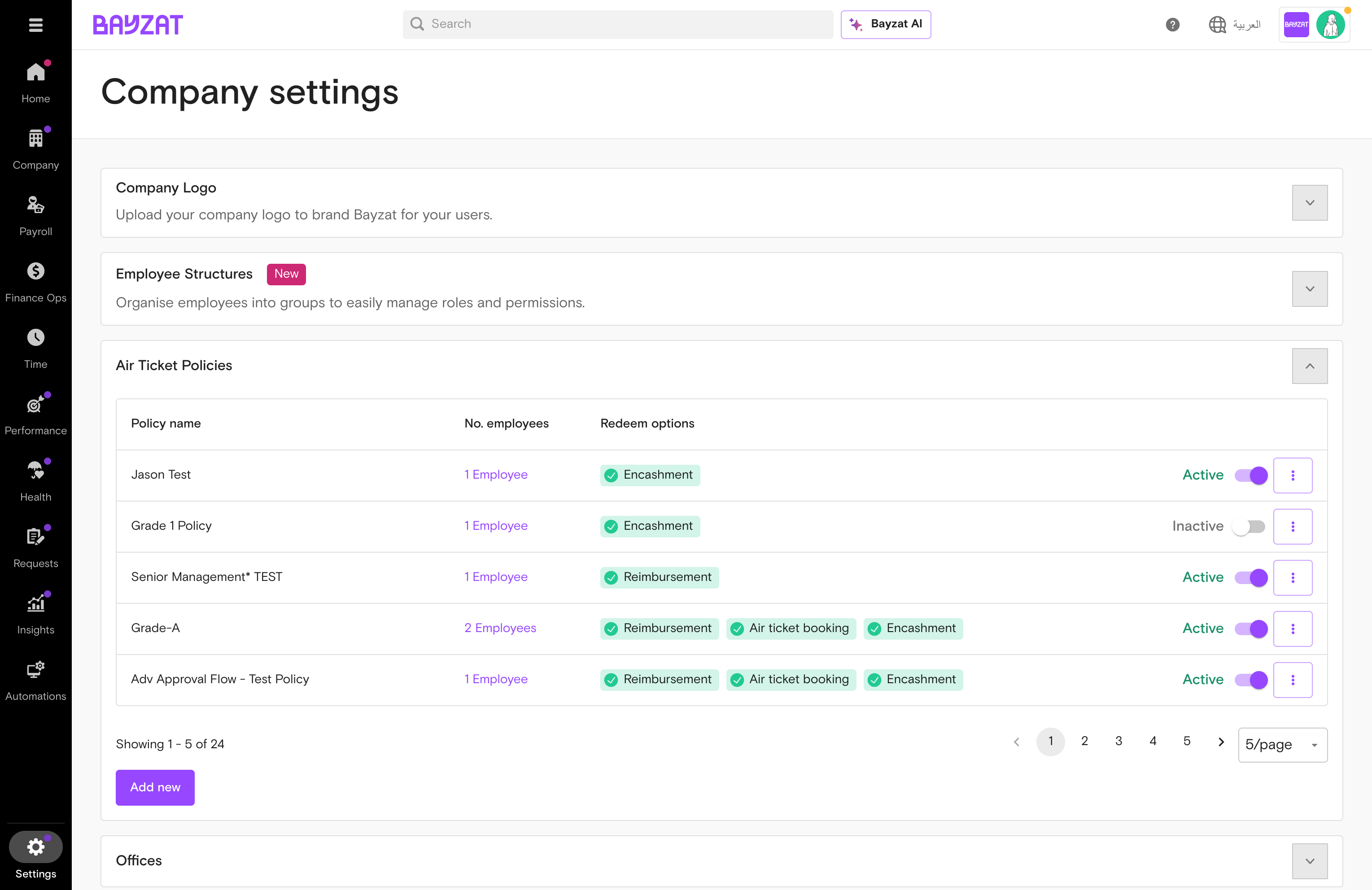
Navigate to Air Ticket Policies
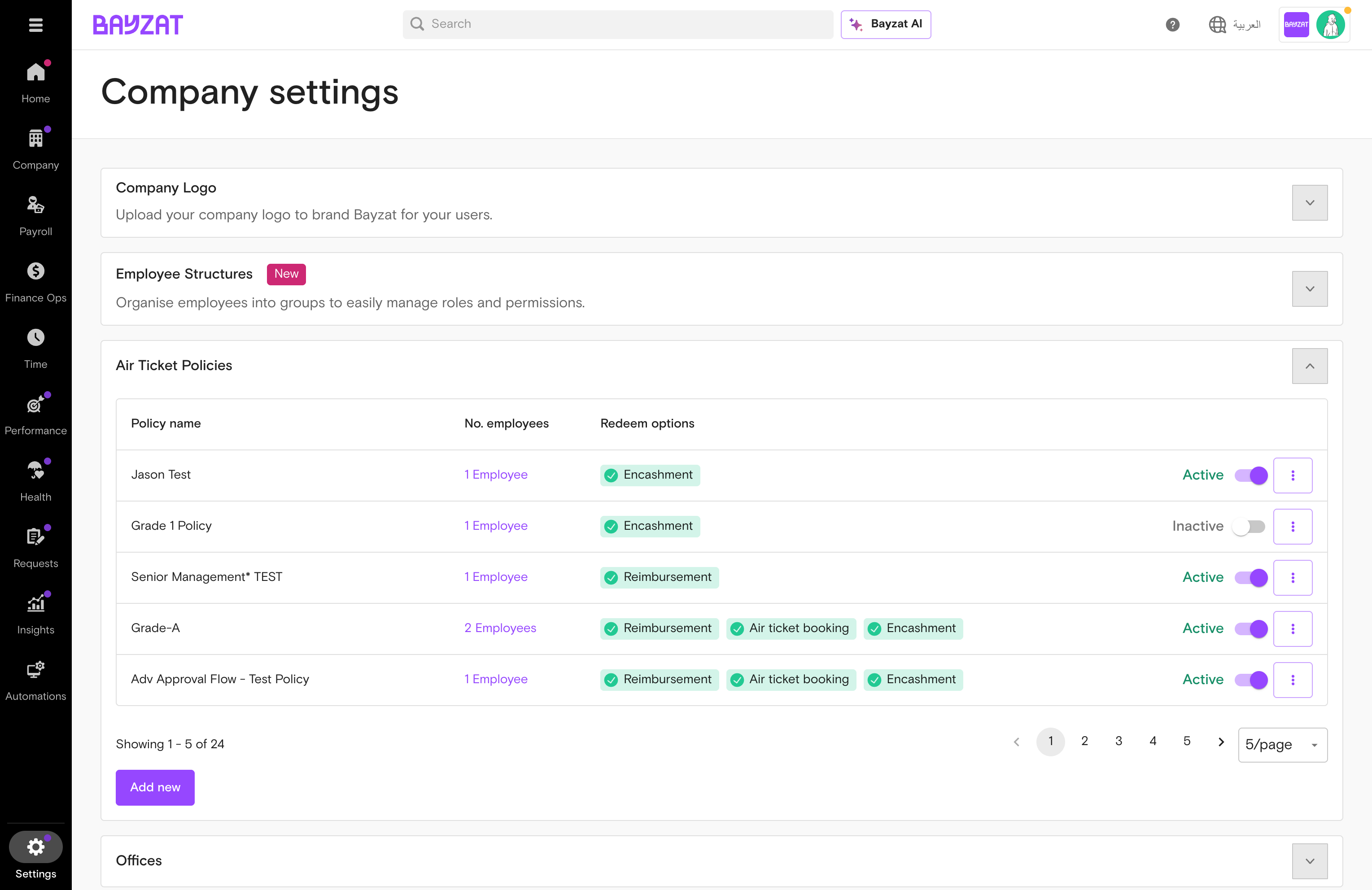
Air ticket policies are managed under Settings → Company → Air ticket policies. This section lists all active policies and is where you add, edit, or adjust the terms that govern how air tickets accrue.
Payroll→Air Tickets
Air ticket policies list
2
Open the active policy to edit
Click the three-dot menu on the current policy → Edit. Review current frequency setting.
Air ticket policy detail
3
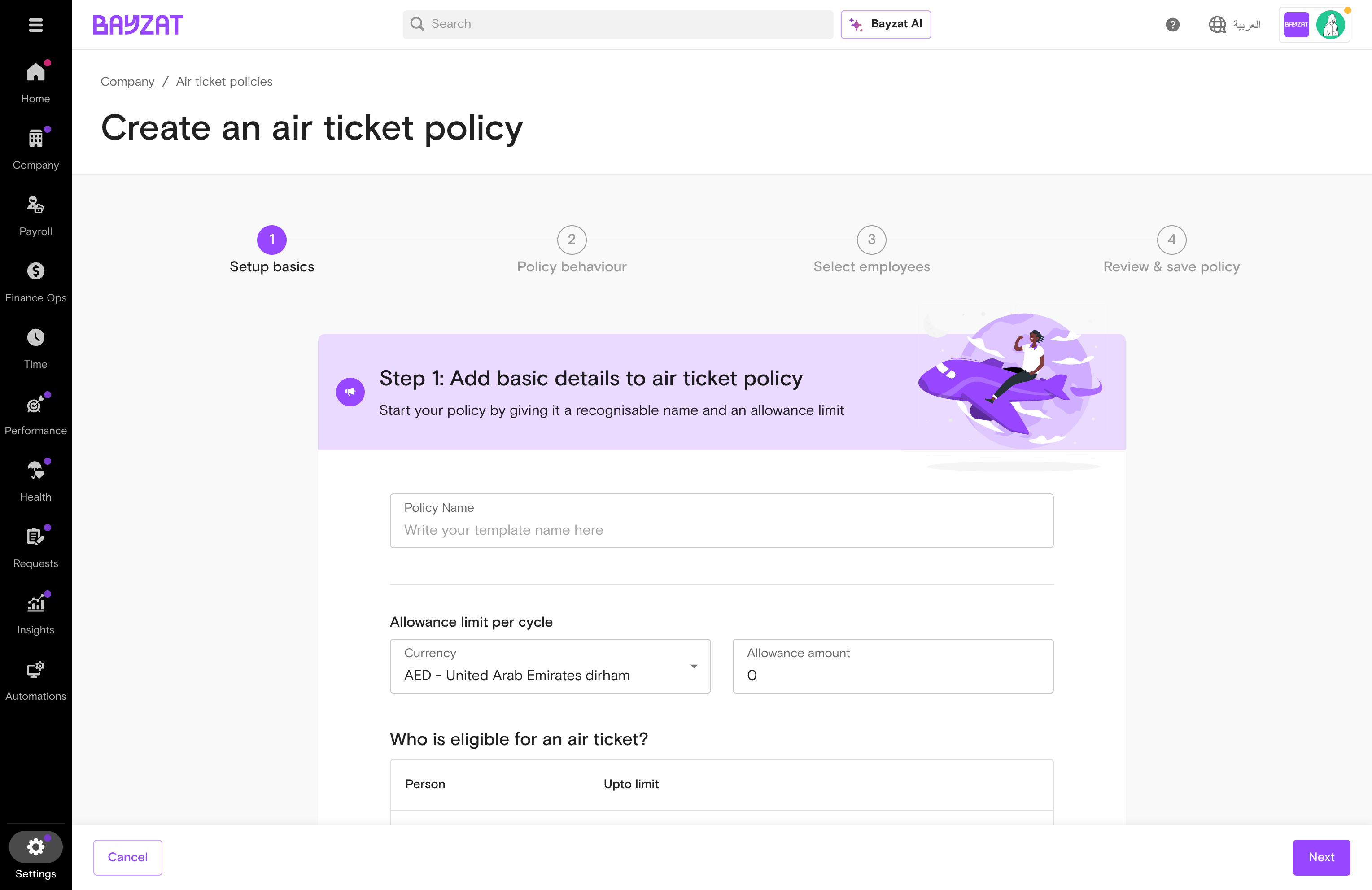
Change frequency to every 2 years
In the policy behaviour settings, update the entitlement cycle frequency from annual to every 2 years. Save the policy — the change applies immediately to new requests. Employees who have already used their current-cycle entitlement will not be able to make another request until the 2-year cycle completes.
Policy behaviour — frequency setting
4
Save and communicate to employees
Save the updated policy. Employees will see updated entitlement next time they attempt to raise a request. Communicate the change ahead of time.
💡 This is a temporary measure — you can revert the policy back to annual once the situation normalises. Keep a note of the original settings.
⚠ Employees with an air ticket currently due may be affected. Review outstanding requests before making the change and communicate proactively.
Create a new salary configuration with a future effective date — reducing, restructuring, or revising pay. The old configuration is preserved in history for audit purposes.
Steps
1
Open Salary Configuration
Company → All Employees → Employee → Payroll tab → Salary Configuration.
Click + Add Salary Configuration. Do not edit the existing one.
3
Enter new salary and select the effective cycle
In the Salary comes into effect from dropdown, select the payroll cycle when the new salary should start (e.g. Jan 2026). The dropdown only shows open and future cycles — you cannot back-date to a closed month. If you select a past open cycle, the system generates salary arrears (not pro-rated adjustments) on the current cycle to cover the difference.
4
Save the new configuration
Click Save. The new configuration appears as Current Fixed Pay with the effective start date; the previous configuration moves to the Salary History section. From the effective cycle onwards, the Payroll Table will reflect the new amounts.
Payroll Table showing updated salary
Currency cannot be changed once a salary configuration exists. Contact your CSM if a currency change is needed.
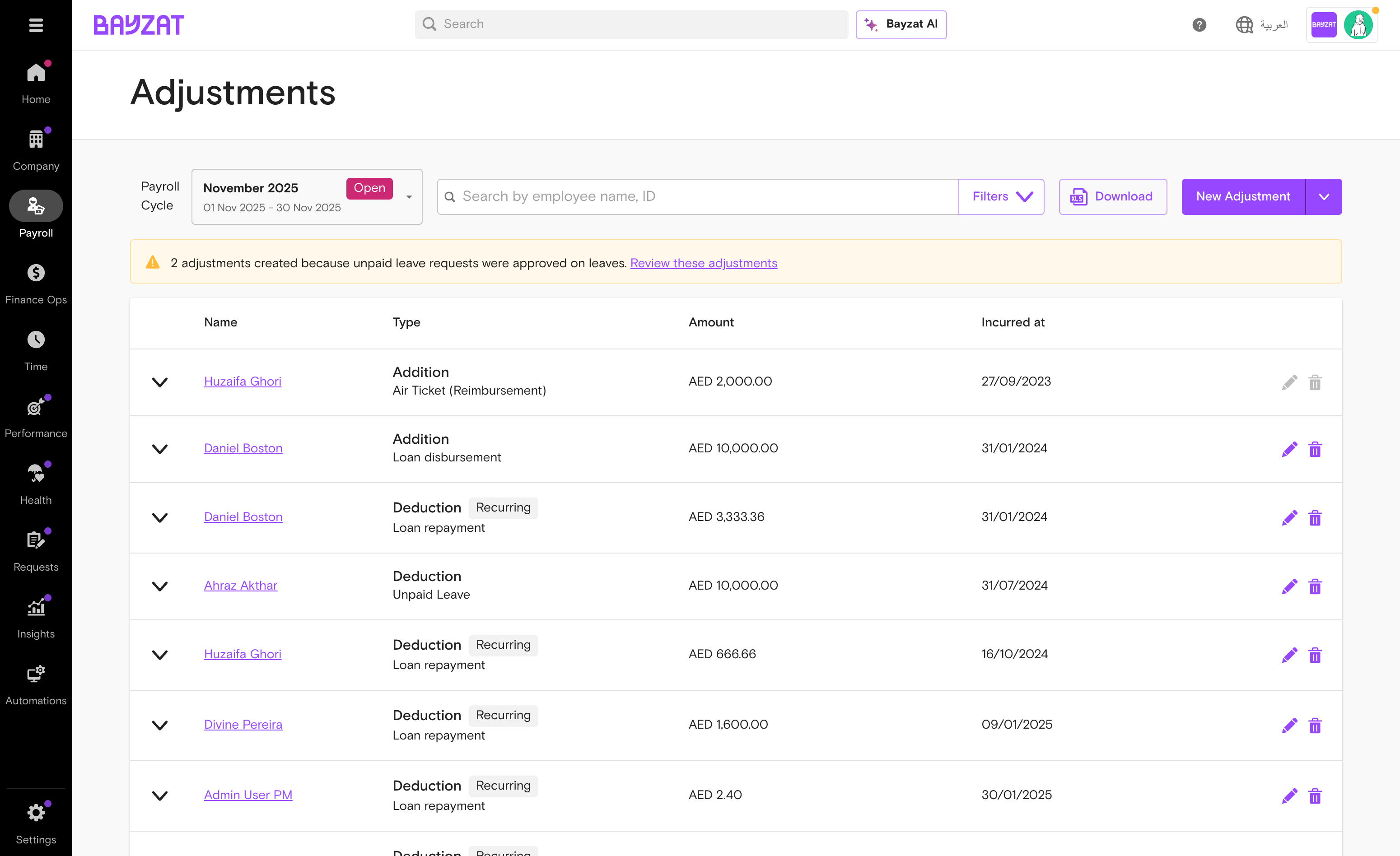
Apply a specific deduction to an employee's pay for the current month without touching their base salary configuration.
Steps
1
Go to Payroll Adjustments
Payroll → Adjustments → New Adjustment.
Payroll→Adjustments→New Adjustment
Payroll Adjustments
2
Select Deduction and category
Choose Deduction and the salary component category. Create the category in Settings if it doesn't exist.
3
Complete the adjustment form
Fill in Type (the deduction category), Date Incurred (determines which payroll cycle the deduction lands in — must be within the open cycle), Amount in the employee's base currency, optional VAT, a Note explaining the deduction, and any supporting documents via the file upload area. The Reference # is auto-generated but editable.
4
Verify in Payroll Table
Confirm the deduction appears in net pay before submitting the transaction.
Payroll Table showing deduction
Transactions in a closed payroll month cannot be undone. Process all deductions before closing.
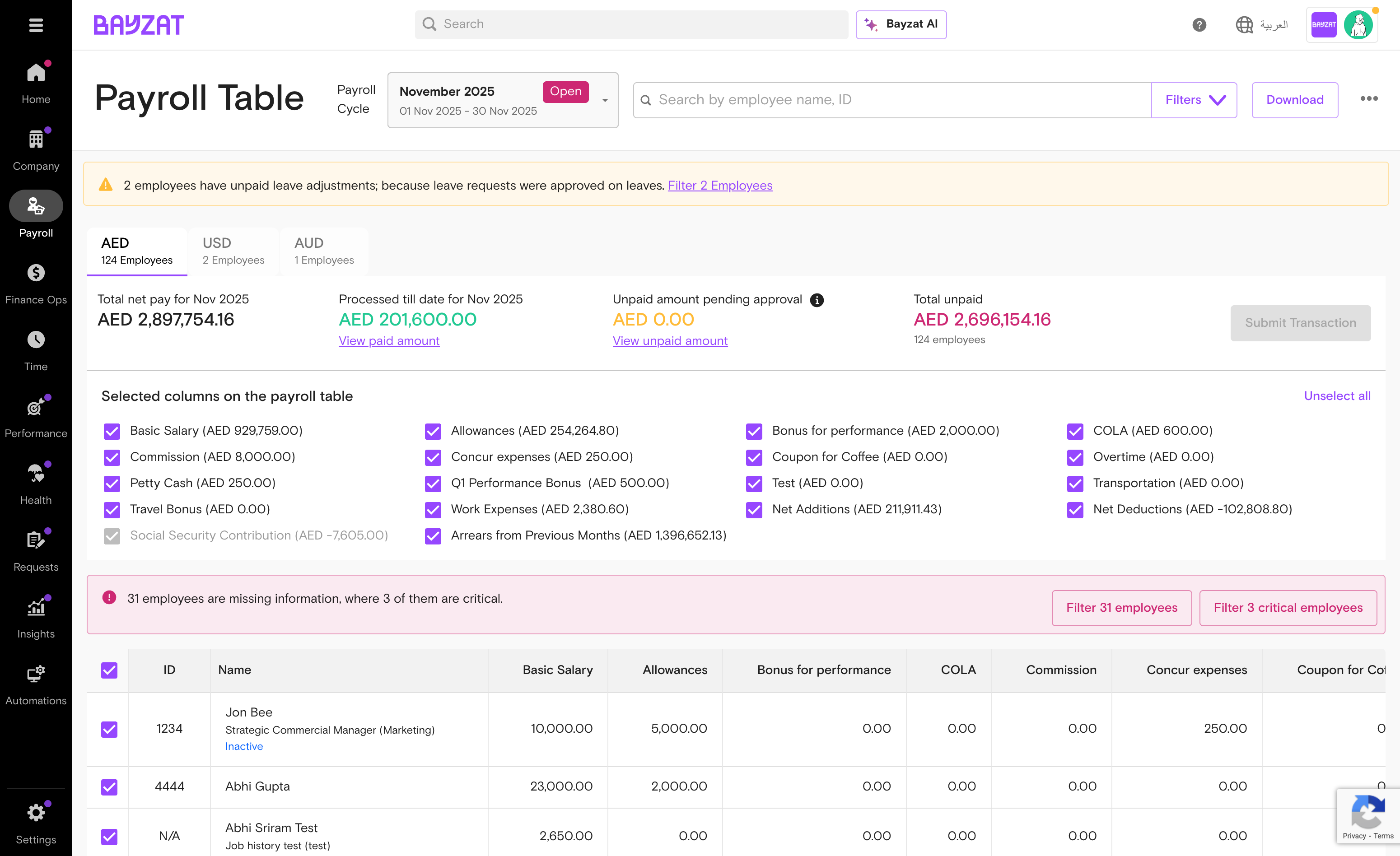
Review the payroll table after changes, submit a transaction, get approval, and close the payroll month correctly.
Steps
1
Open the Payroll Table
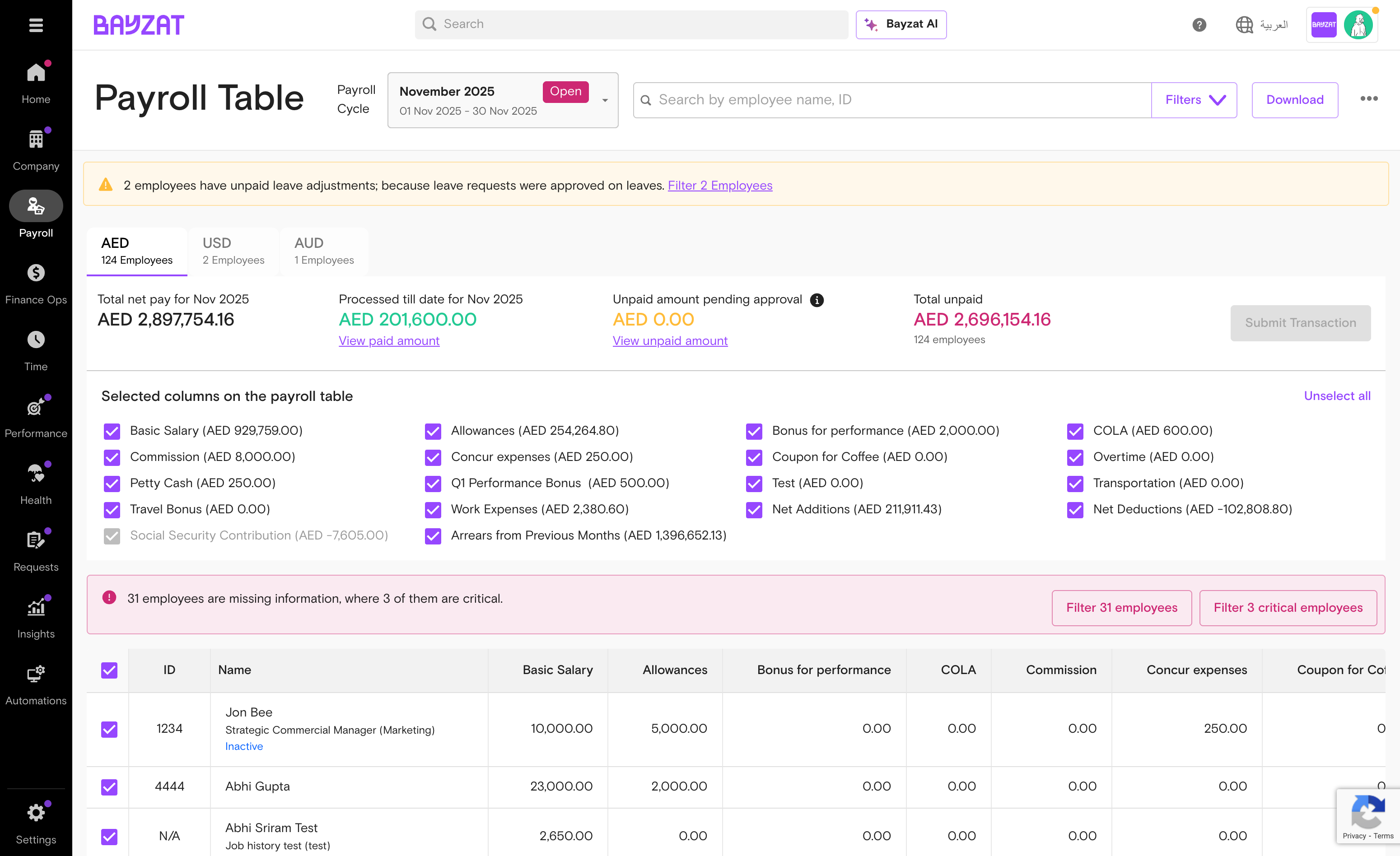
Payroll → Payroll Table. A yellow banner appears at the top if unpaid leave has auto-generated deductions for the cycle — click "Review these adjustments" to inspect them before submitting.
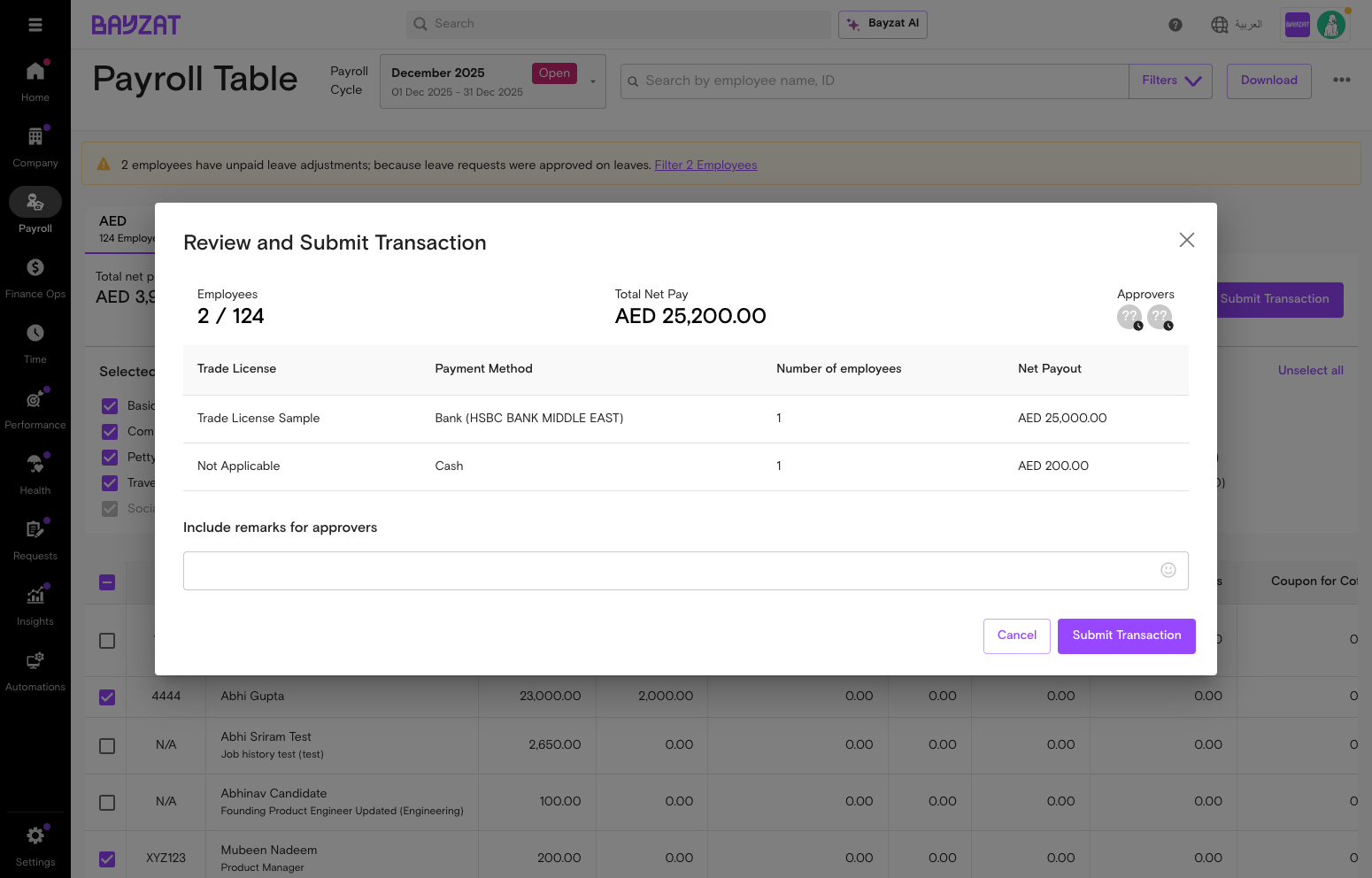
More Options (⋮) → Close payroll cycle launches a four-step confirmation: (1) Summary dialog with a currency-by-currency breakdown of Total net pay, Amount Processed, and Amount Unpaid; (2) Review breakdown showing per-employee unpaid items that will carry forward as arrears; (3) Acknowledge with the confirmation checkbox; (4) Click Close month and carry forward. This action is permanent.
Closing a payroll month is permanent and irreversible. Confirm everything is correct before closing.
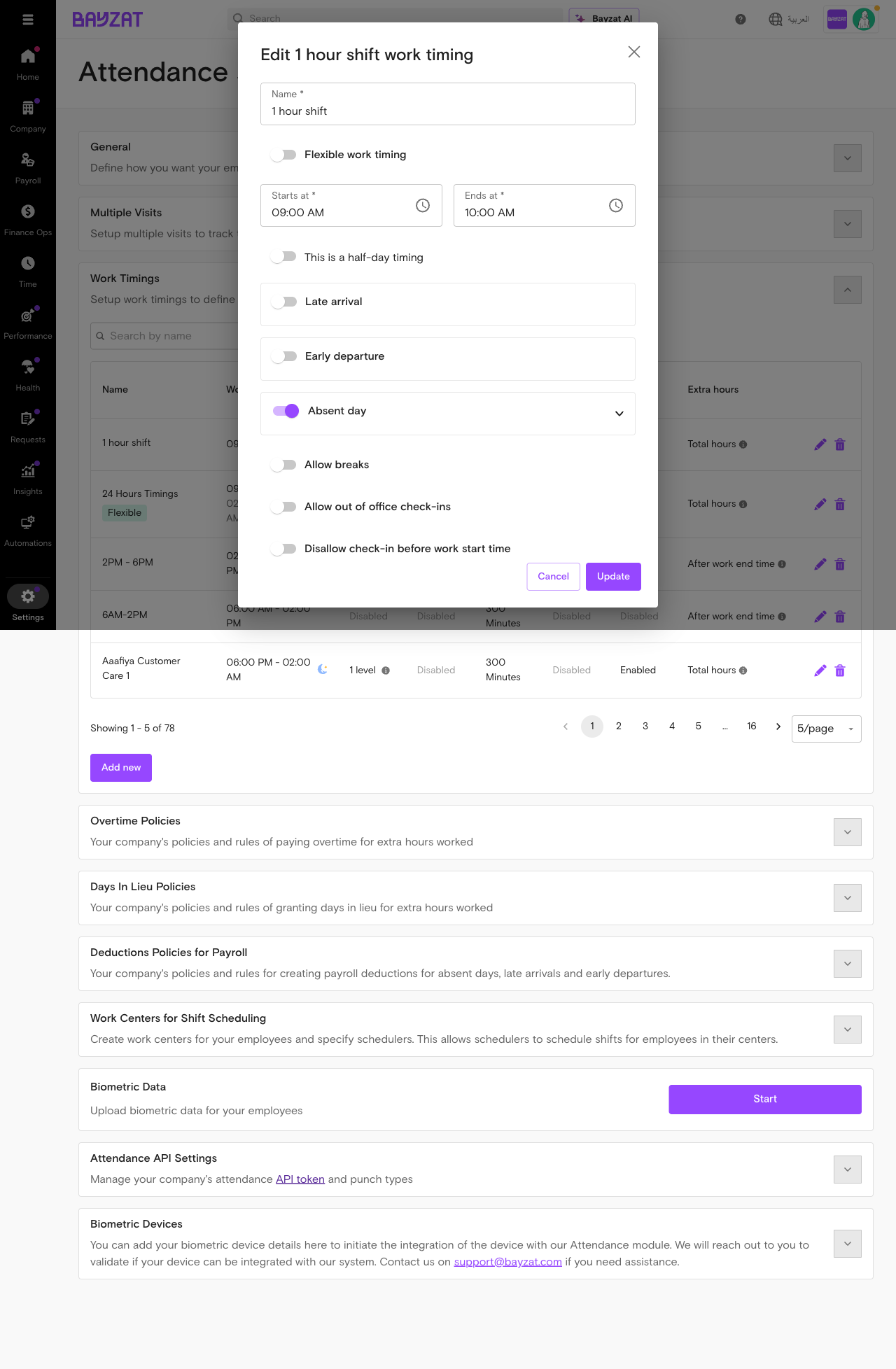
Create a deduction policy that automatically applies payroll deductions when employees violate attendance rules — late arrivals, early departures, or absences. Set up either standard fixed deductions or advanced multi-level occurrence tracking with escalating penalties.
Steps
1
Go to Deduction Policies for Payroll and add a new policy
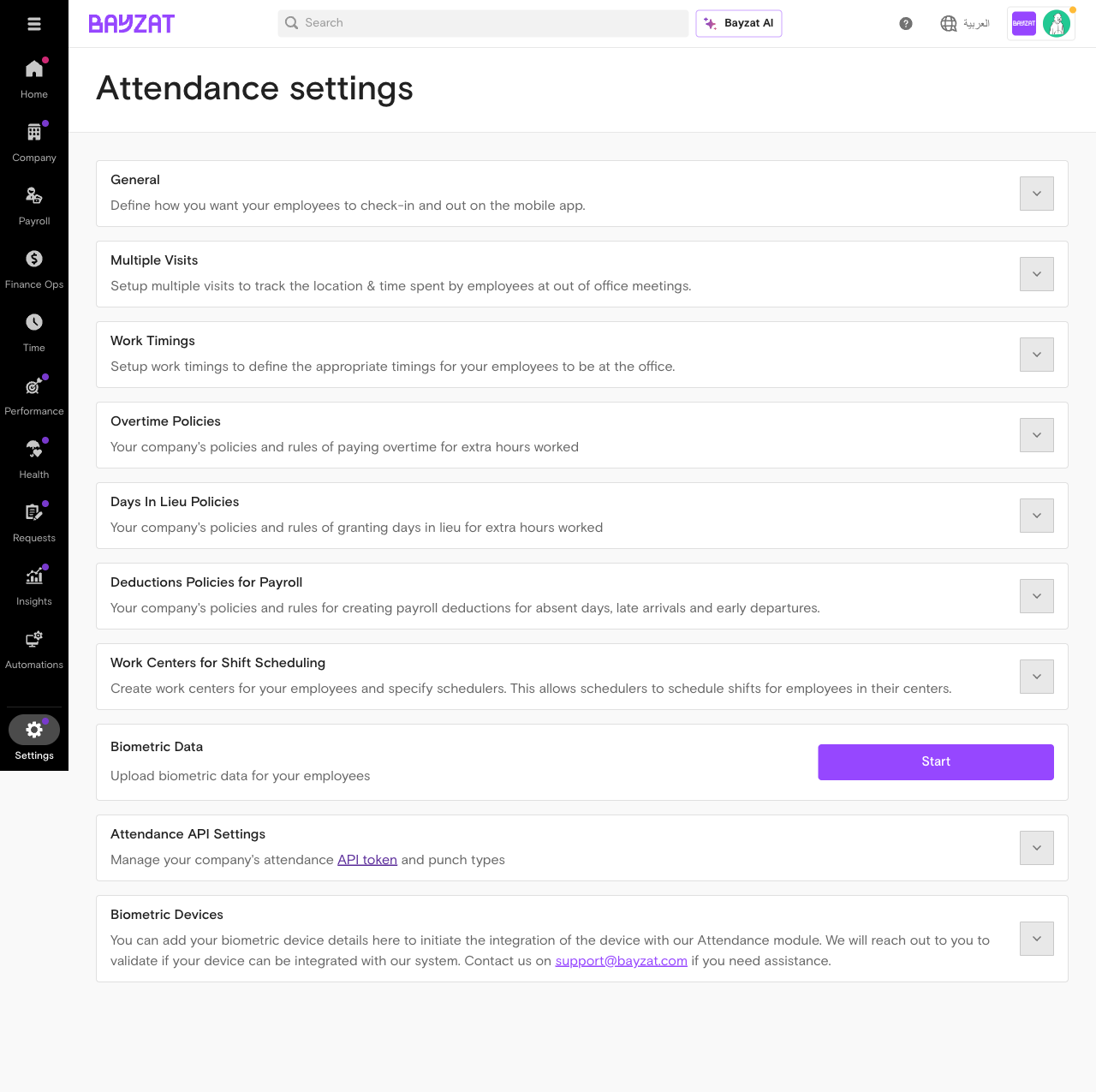
Navigate to Settings → Attendance → Deduction Policies for Payroll. Click Add New to start a new policy. You can have multiple policies active at once — for example, different rules for office staff vs. field teams.
Settings→Attendance→Deduction Policies for Payroll
Attendance settings
2
Configure policy name and general settings
Name the policy clearly so it's easy to distinguish later. Then configure the policy-level settings: Visibility of Deduction Amounts for Managers (toggle whether Line and Attendance Managers can see monetary values on time and pay adjustments), Time to Action Window (how long Line Managers have to approve violation entries before they expire), and Violation Tracking Method — choose Standard for fixed per-violation penalties, or Advanced to track multi-occurrence escalation. If you choose Advanced, also set the Policy Refresh Duration — the window in which repeated violations count against each other (e.g. 10 days).
3
Configure the deduction rules for Late Arrival, Early Departure, and Absent
For each violation type, define the penalty using the deduction formula: (Salary component ÷ Days) × Multiplier. Choose the Salary Component (Basic Salary, or Basic Salary + Allowances), the Days Calculation (Calendar Days, Working Days, or Custom Days — most UAE and KSA companies use 30 custom days), and the Multiplier (default 1.00).
Standard tracking: one flat penalty applied each time the violation occurs.
Advanced tracking: configure up to 4 occurrence levels with up to 4 penalty types per level. Available penalty types: Written Warning (automated email with a link to the warning letter), Fixed Deduction (flat percentage-based penalty), Variable Deduction (deduction scales with violation duration), or any combination such as Deduction + Written Warning. Advanced tracking also unlocks the Allow marking of work disruptions toggle, which lets managers set different penalties depending on whether the violation disrupted co-workers.
Work timing configuration
4
Assign employees to the policy
Select employees from the list on the left-hand side to include them in this policy. Each employee can only be assigned to one deduction policy at a time — moving an employee between policies requires removing them from the current one first.
Settings→Attendance→Deduction Policies for Payroll
5
Review the policy and save
Review all policy details — the name, general settings, deduction rules for each violation type, and assigned employees — and click Save. The policy activates immediately and applies to all future attendance violations for assigned employees. Existing, unprocessed violations are not retroactively affected.
💡 Reducing penalties is a practical way to retain goodwill — especially when attendance disruptions are beyond employees' control.
Review your current overtime policy, adjust rates, or switch to a Days in Lieu model to manage cash flow during this period.
Steps
1
Navigate to Overtime Policies
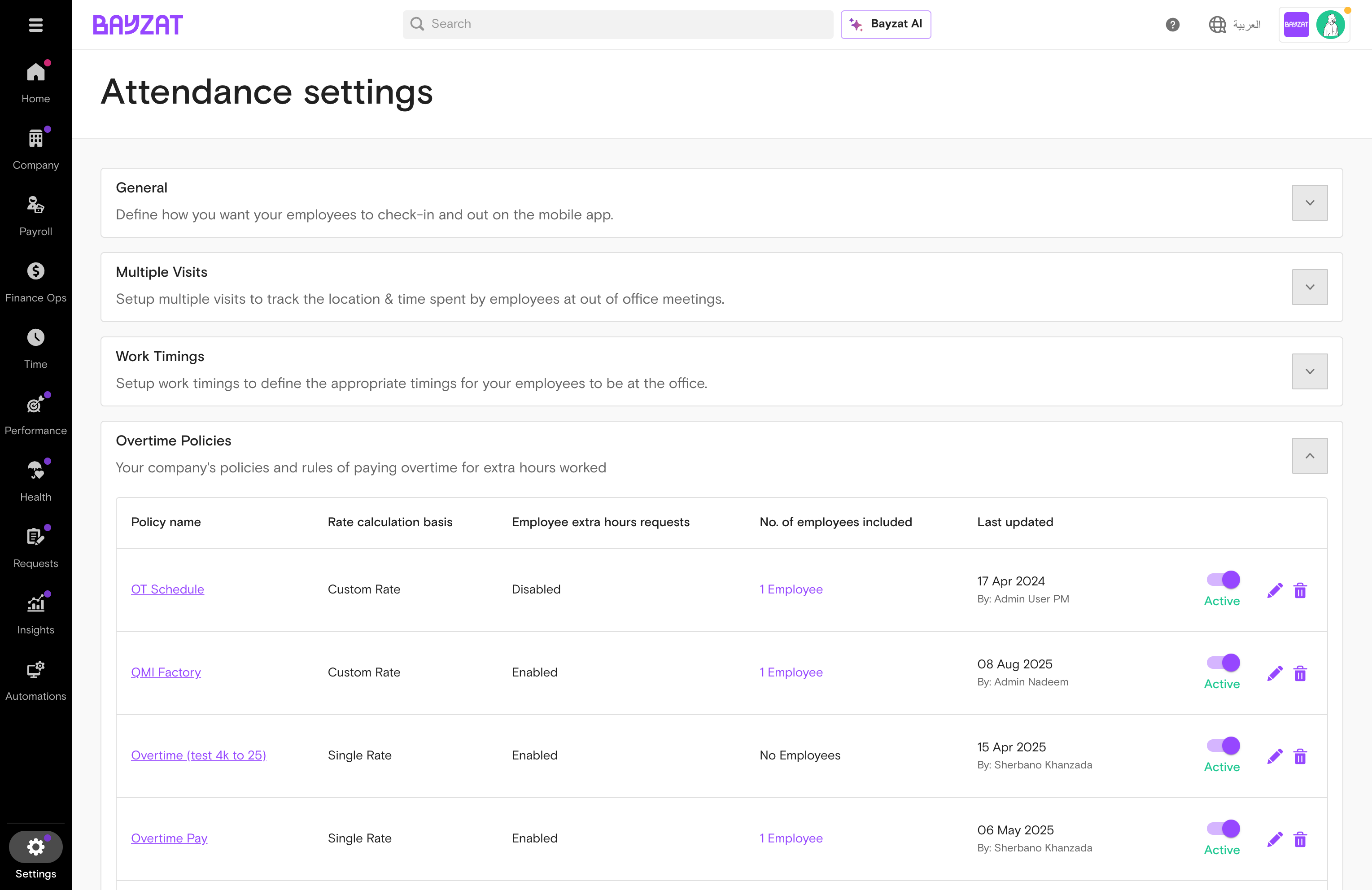
Settings → Attendance → Overtime.
Settings→Attendance→Overtime
Overtime policies list
2
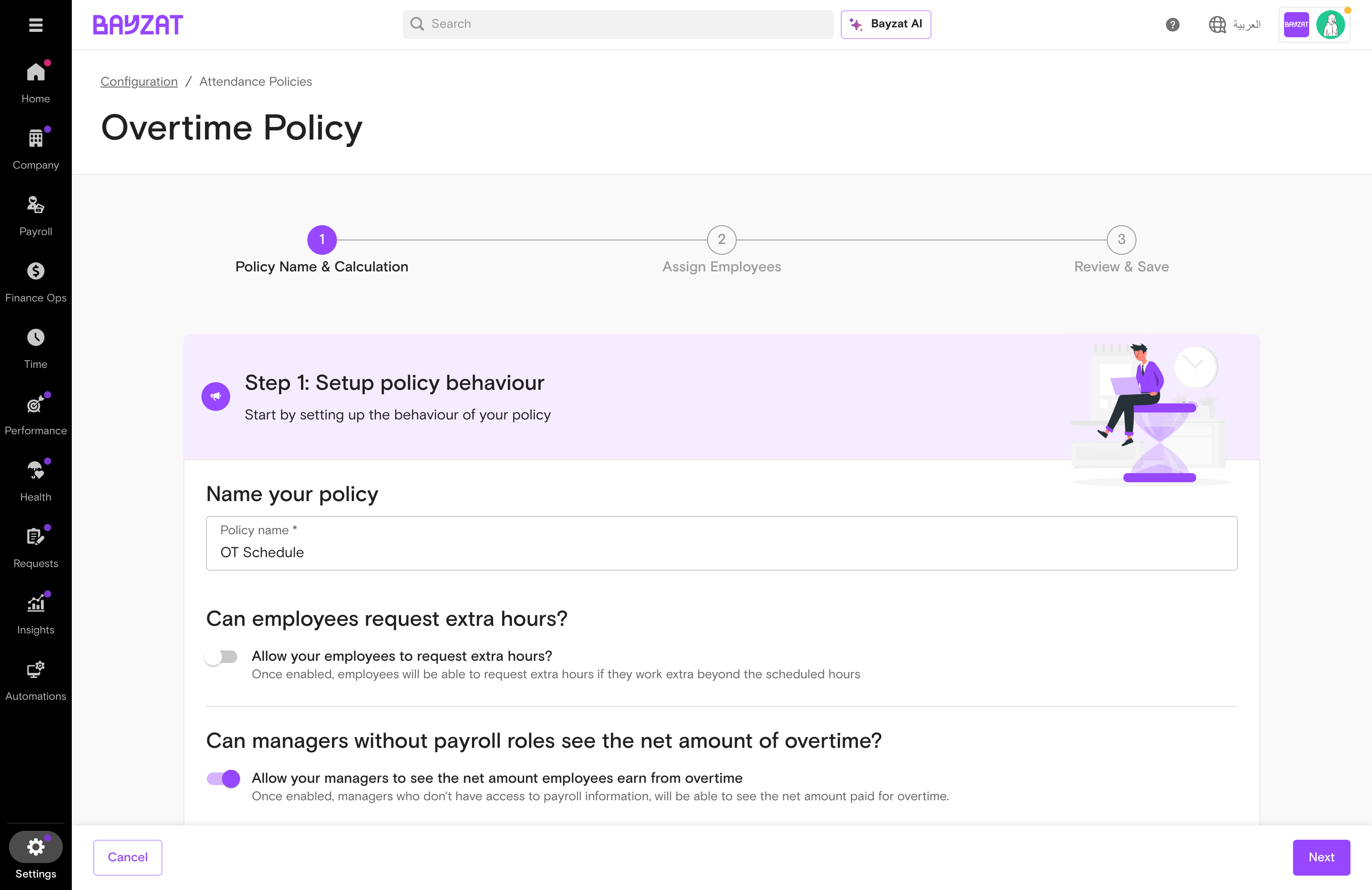
Review the current policy
Click your existing policy to view rate calculation, eligible employees, and approval flow.
Overtime policy configuration
3
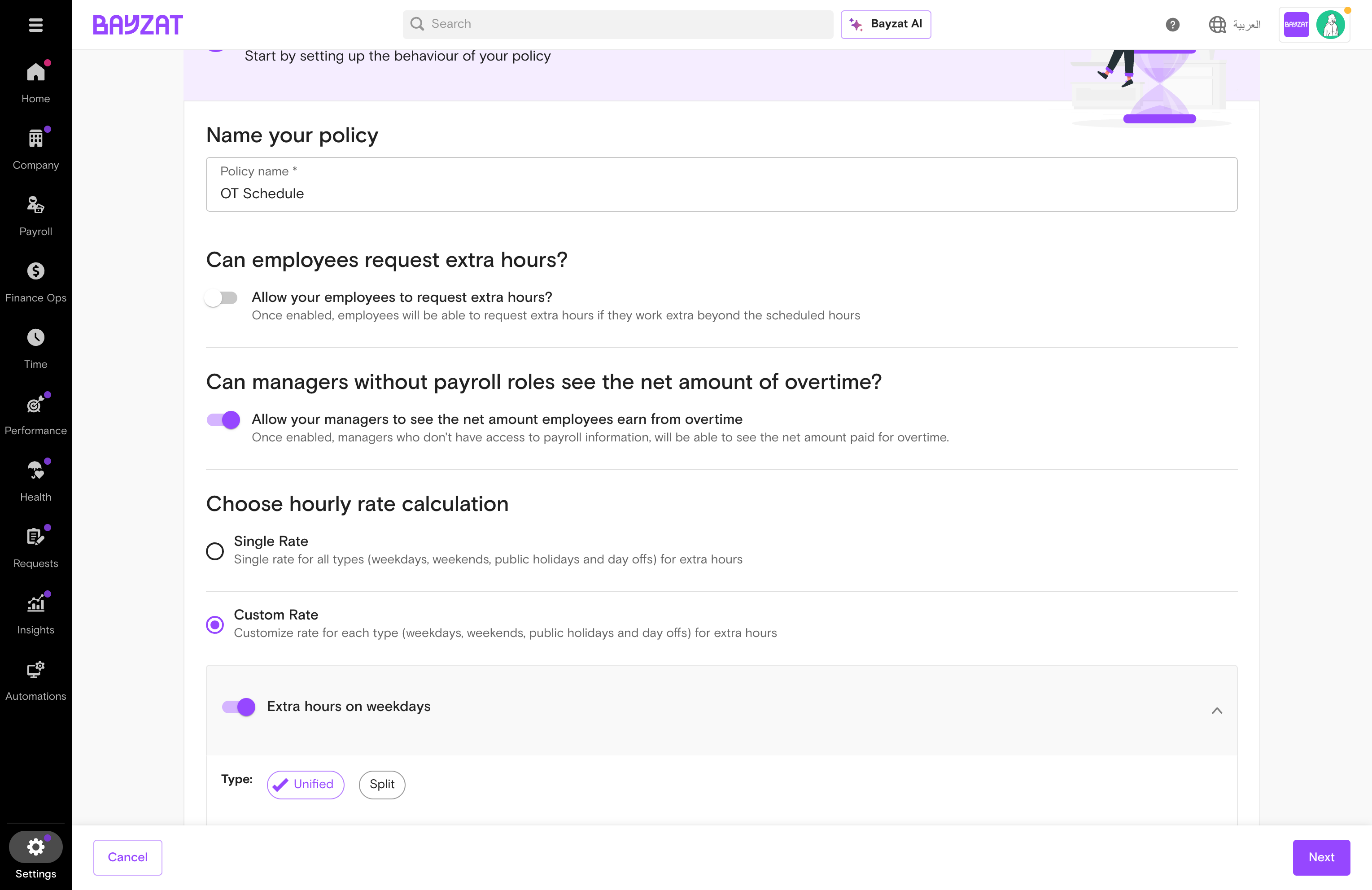
Edit the policy in place — rates, multipliers, salary component, eligible employees
Open the existing policy to edit it directly rather than deactivating. Inside, you can update: the rate calculation type (Single Rate or Custom Rate for different weekday/weekend/holiday multipliers), the multiplier (e.g. 1.25x, 1.5x), the salary component used for the base rate (Basic Salary or Basic + Allowances), the minimum overtime threshold (minutes worked beyond schedule before OT counts), the approval flow, and the list of eligible employees (Included / Excluded). Do not deactivate an active policy mid-period — this immediately stops tracking and historical data cannot be back-filled. To move employees between policies instead, edit each policy's Included/Excluded lists in the order: remove from old, then add to new. Save → Attendance if one does not exist. (3) Assign the same employees. Days in Lieu banks extra hours as compensatory time off rather than cash payment.
Overtime rate calculation options
4
Update employee assignments
Verify the correct employees are still assigned after saving.
💡 Days in Lieu preserves morale while managing payroll costs. Discuss with your legal or HR team before applying the change.
Complete an employee offboarding properly — using Task Lists to ensure nothing is missed: equipment, access, final pay, and exit documentation.
Steps
1
Start offboarding from the Employee Profile
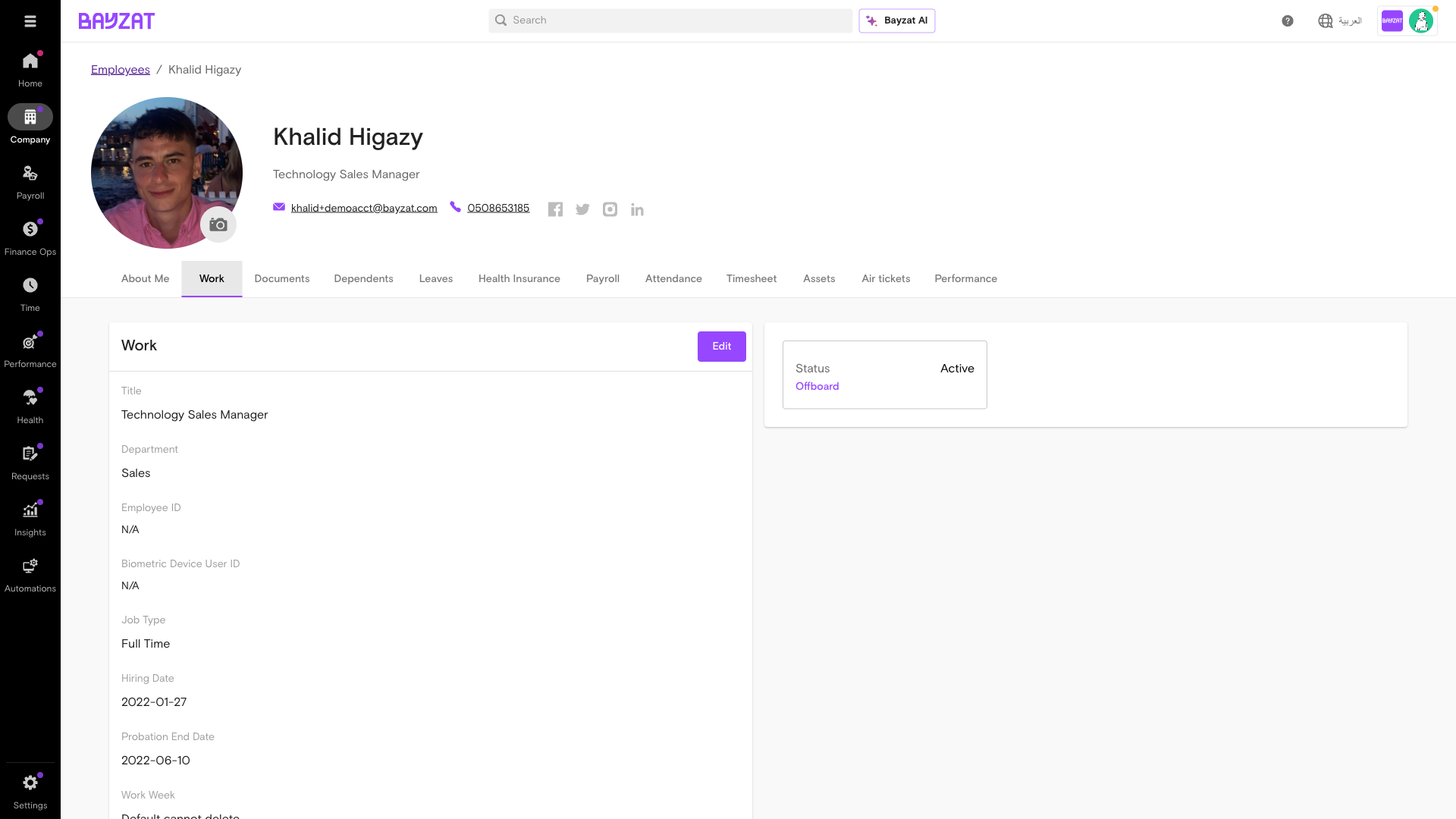
Go to Company → All Employees → [Employee] → Work tab → Offboard employee. This initiates the offboarding flow and captures the last working day. Once initiated, move to End of Service to submit the settlement transaction — see the Process an Employee Termination guide.
2
Create an offboarding task list
Company → Task Manager. Create tasks for IT, Finance, HR, and the Line Manager.
Company→Task Manager
3
Assign tasks and set due dates
For each stakeholder, create a task with a clear title, assignee, and due date:
IT: Collect laptop, revoke system access, deactivate email
Finance: Process final settlement, confirm bank details for last payroll
Line Manager: Knowledge transfer and team handover
Use the Task Manager template feature if your company has a standard offboarding checklist.
4
Unassign company assets
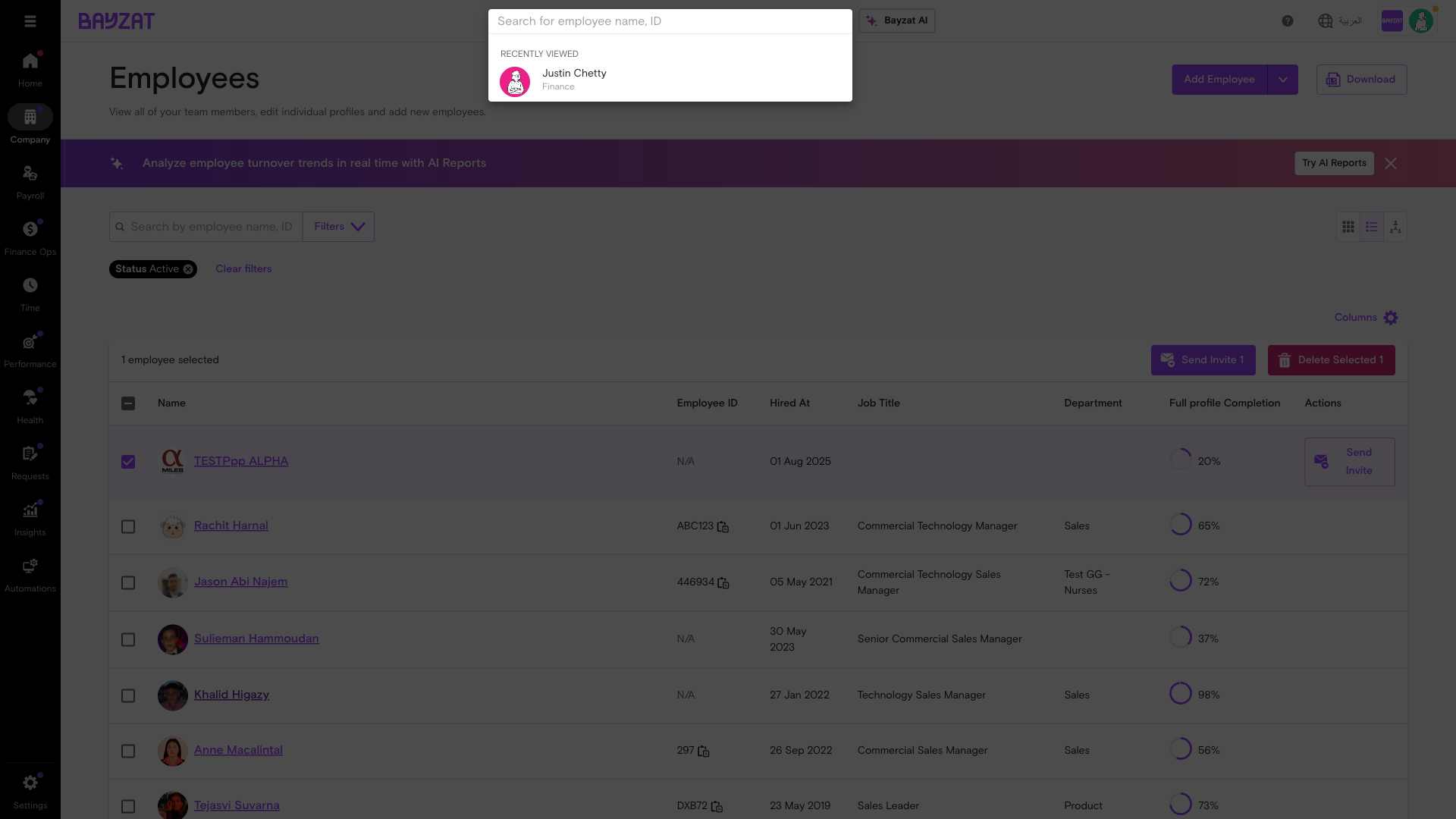
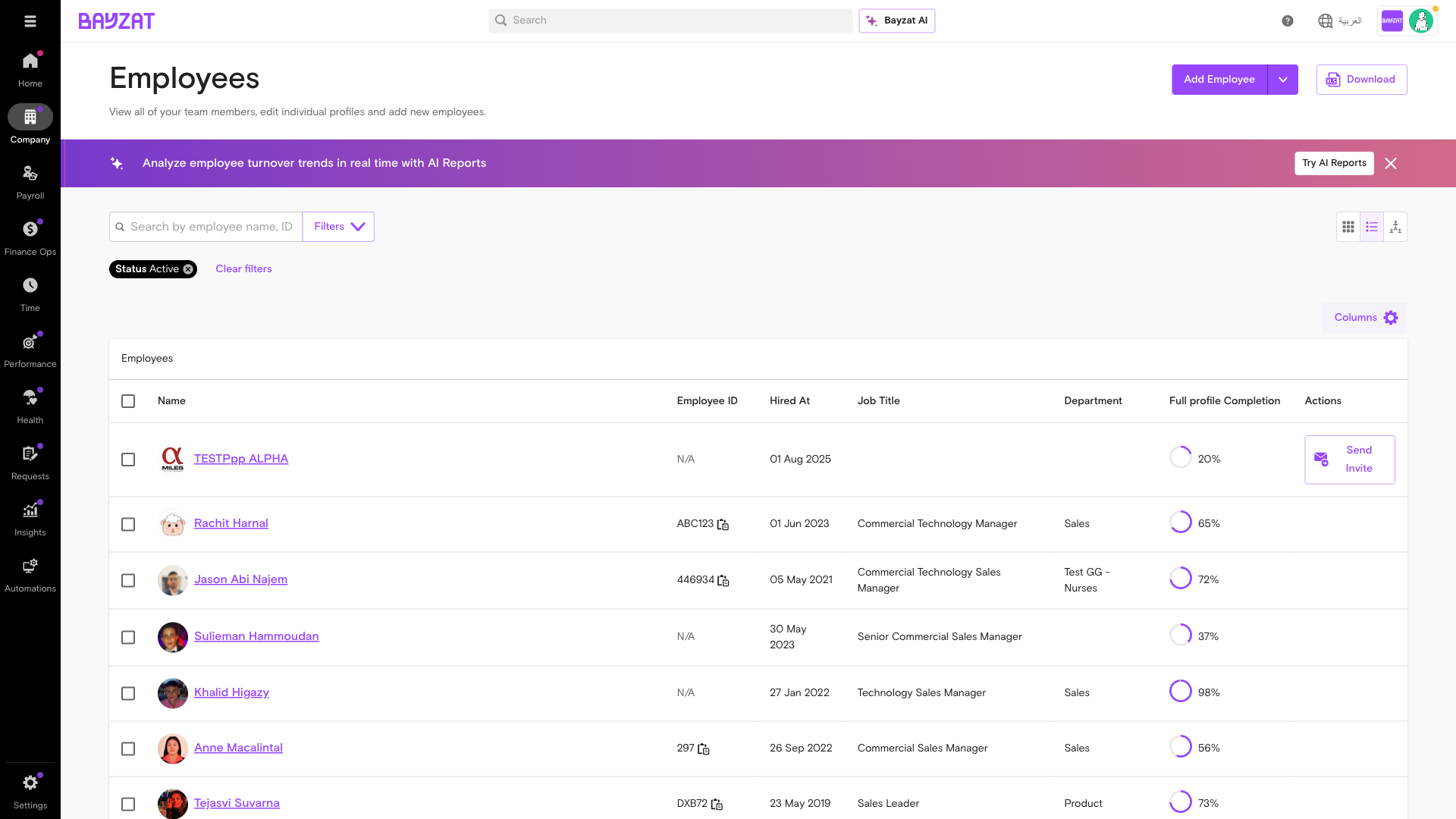
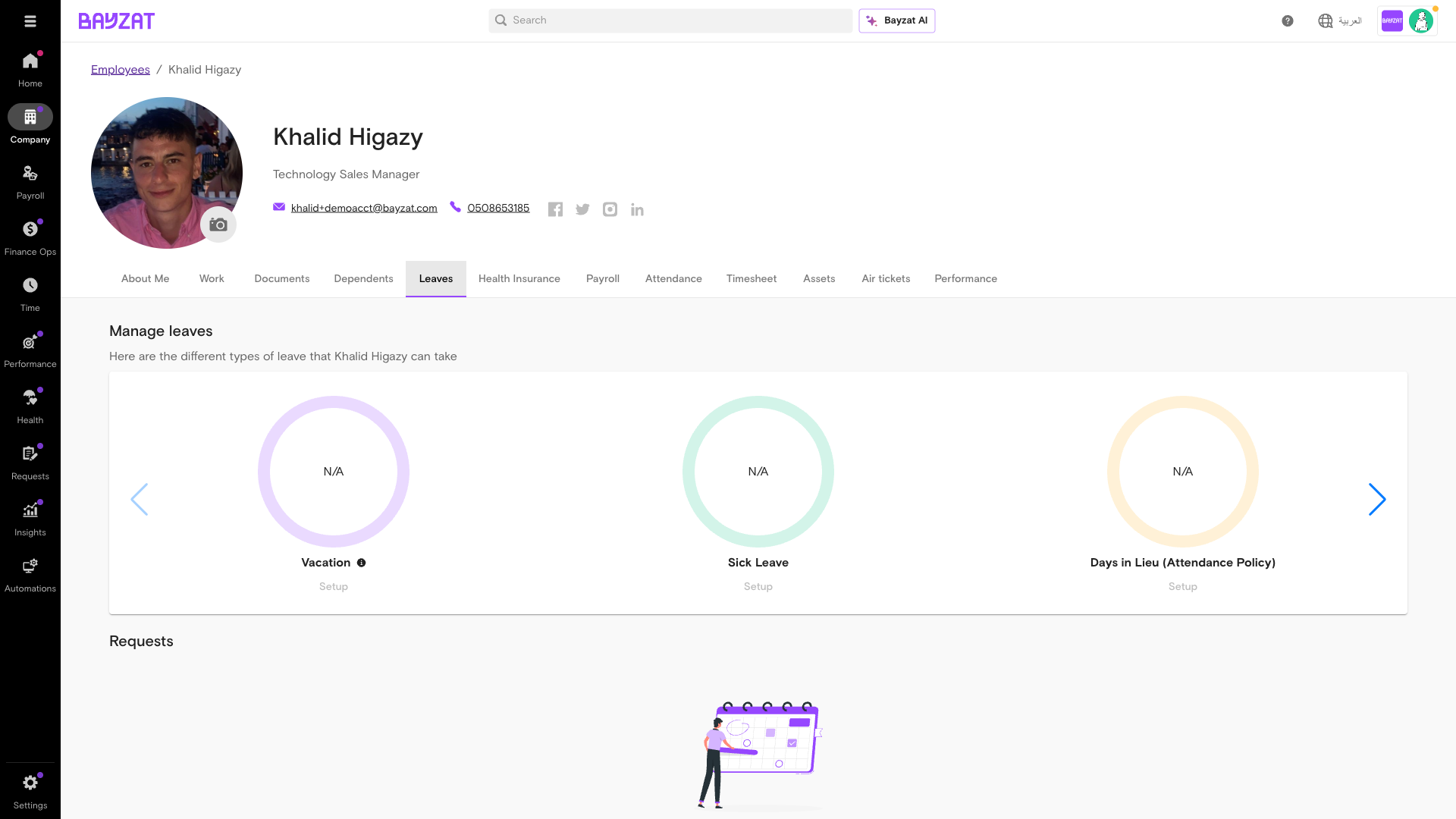
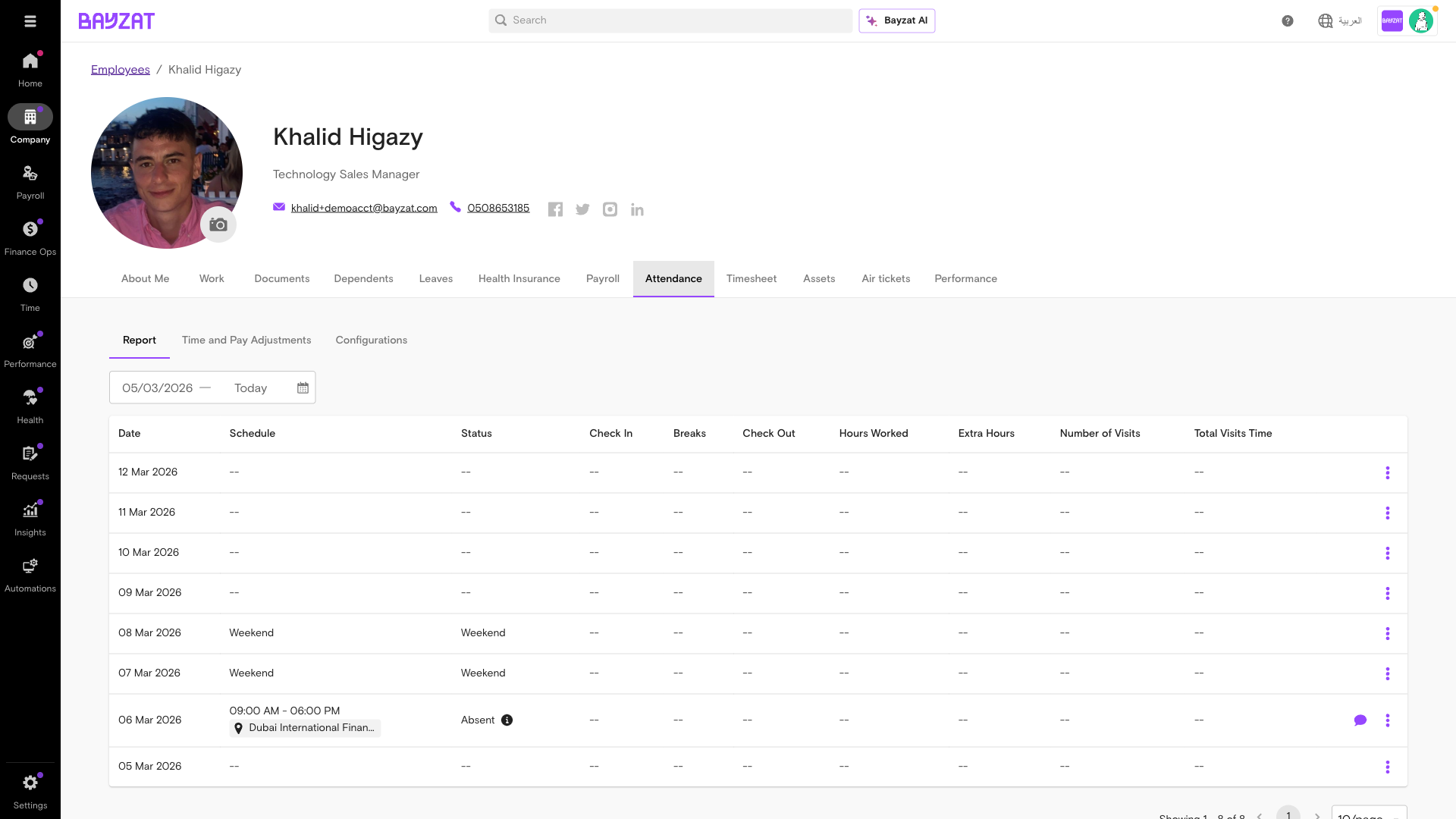
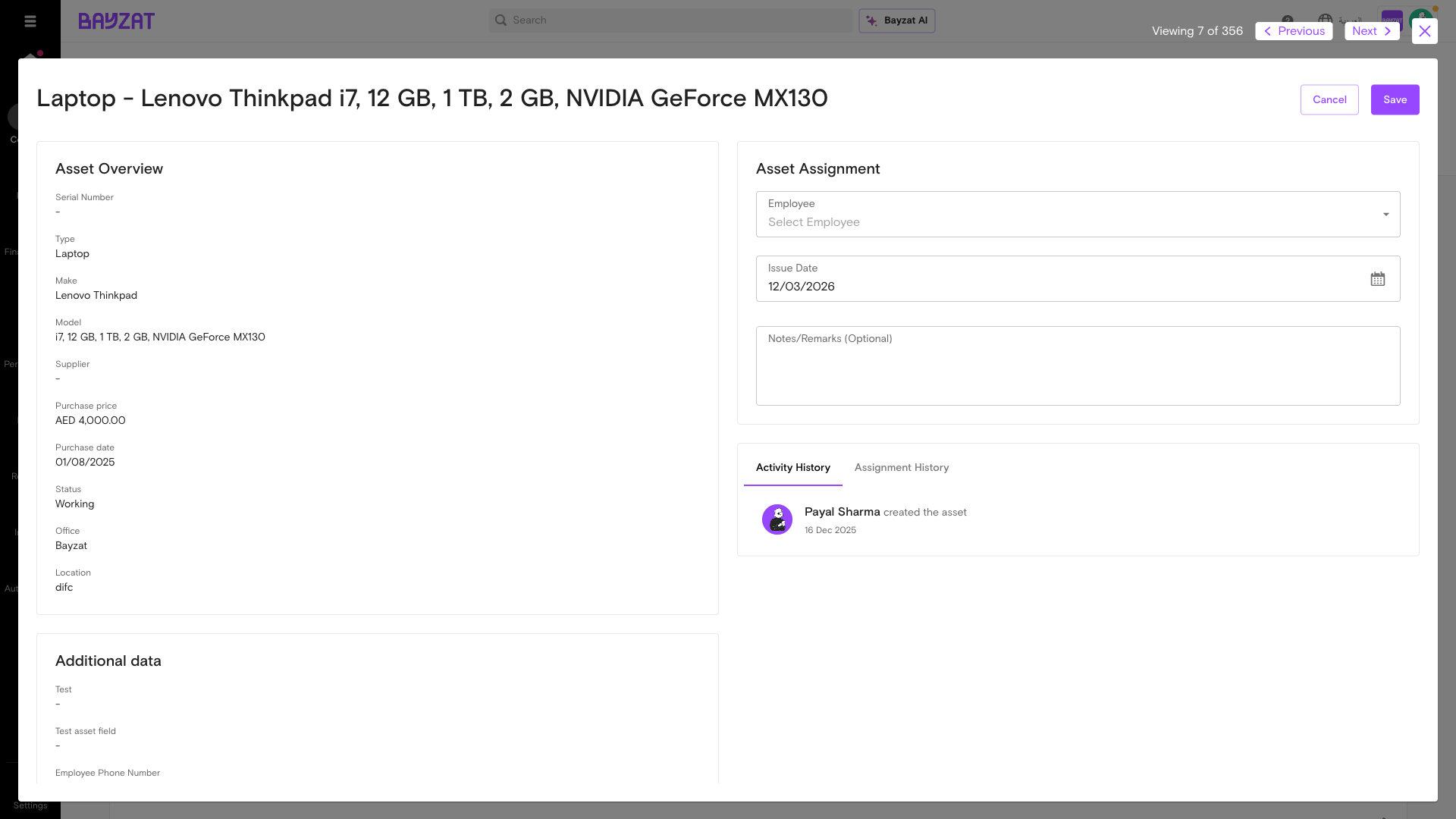
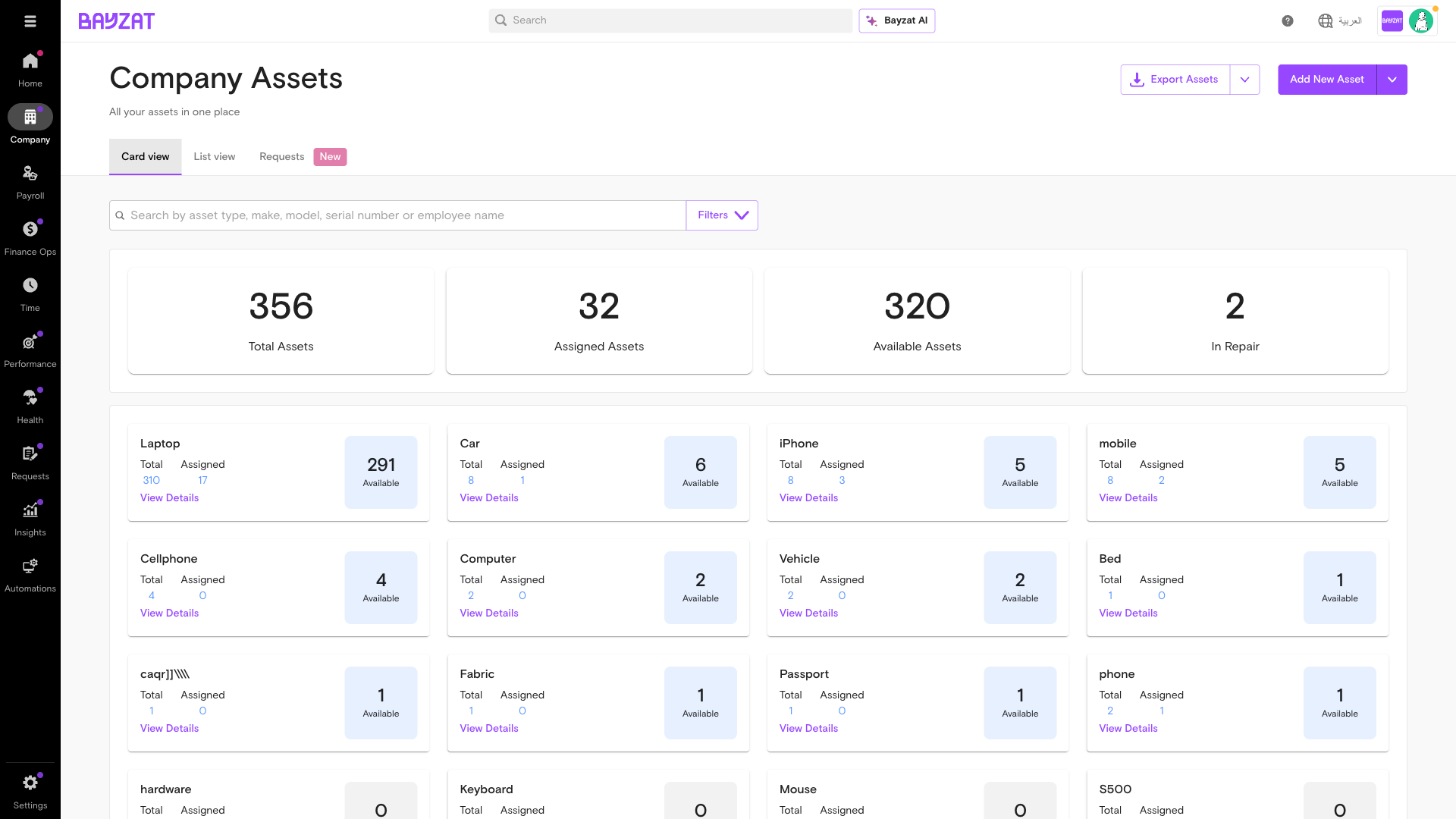
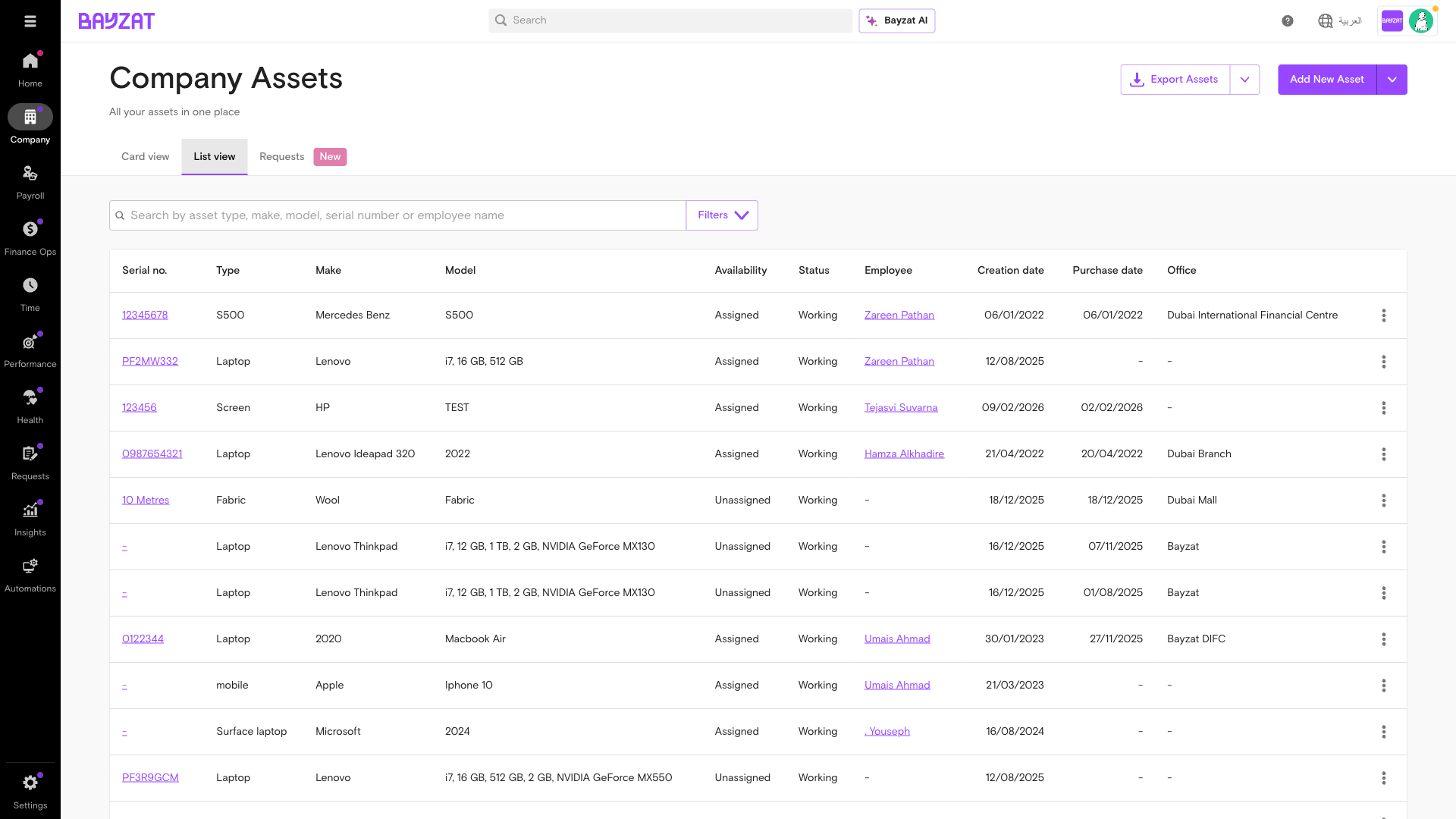
Company → Company Assets → Unassign all assets. Record return date and condition.
Company→Company Assets→Find assets→Unassign
Unassign asset panel
5
Finalise and archive
Once EOS is processed, tasks are complete, and assets are returned, the employee record is automatically marked as inactive on the last working day set during the offboarding flow. Platform access is revoked at that point; historical records remain accessible for audit and reporting.
💡 Create a reusable offboarding template in Task Manager so every future offboarding follows the same process.
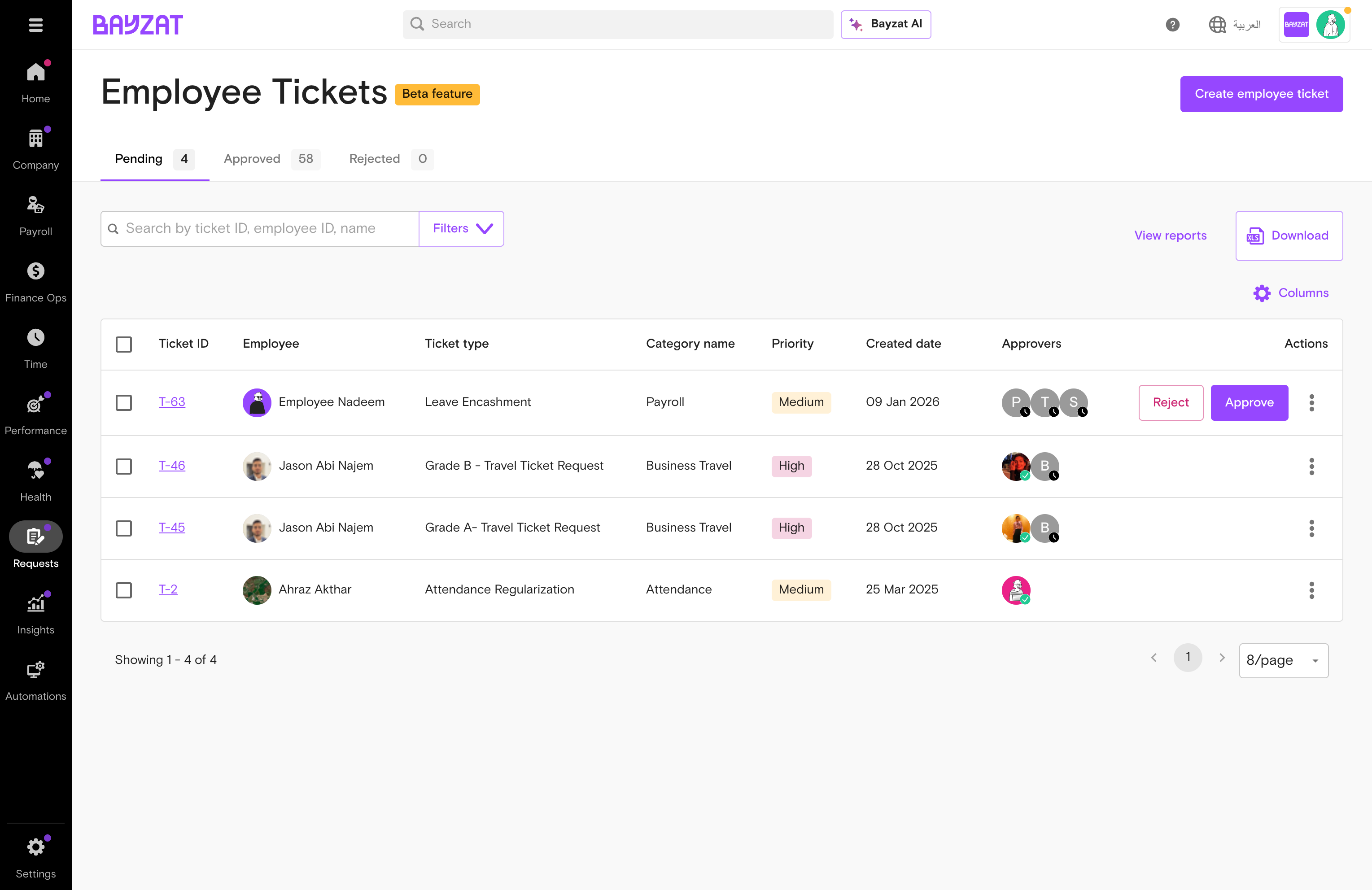
Use Employee Tickets to create and track requests — work from home approvals, emergency contact updates, asset returns — in a structured, auditable way.
Steps
1
Navigate to the Service Desk
Go to Studio → Service desk → Tickets to view the tickets workspace. Admins use this area to configure ticket categories and types; employees access submitted tickets via Requests in the main sidebar.
Requests→Employee Tickets
Employee Tickets — pending tab
2
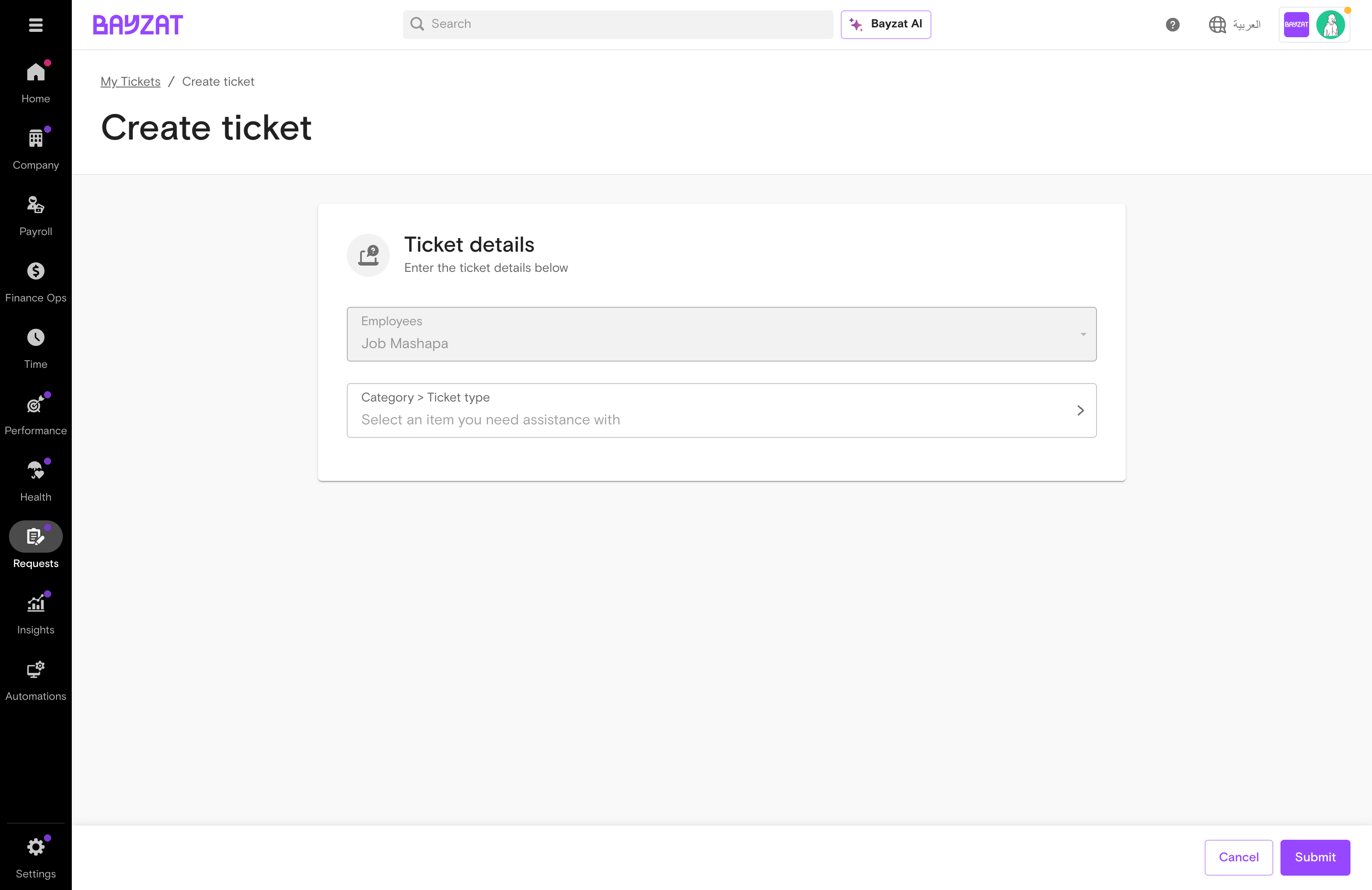
Create a new ticket
Click Raise a ticket. Select type and fill in the relevant details.
Create ticket form
3
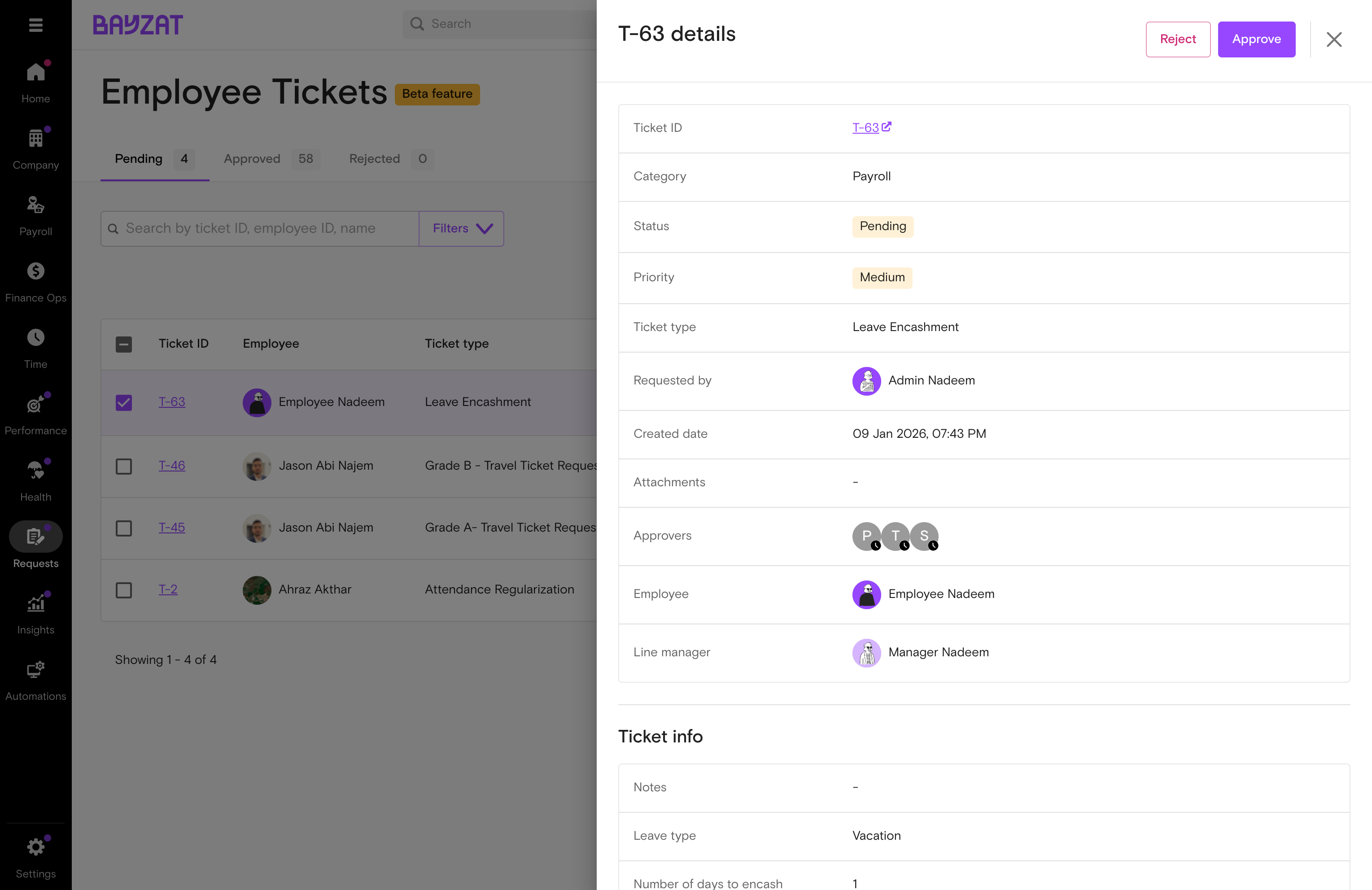
Track request status
All requests show status (Pending, Approved, Rejected). Click for the full approval trail.
Ticket detail modal
4
Approve or manage as admin
Bulk approvals supported from the Pending tab.
💡 Service Desk is ideal for non-standard requests that don't fit standard leave or payroll — particularly useful during periods of operational change.
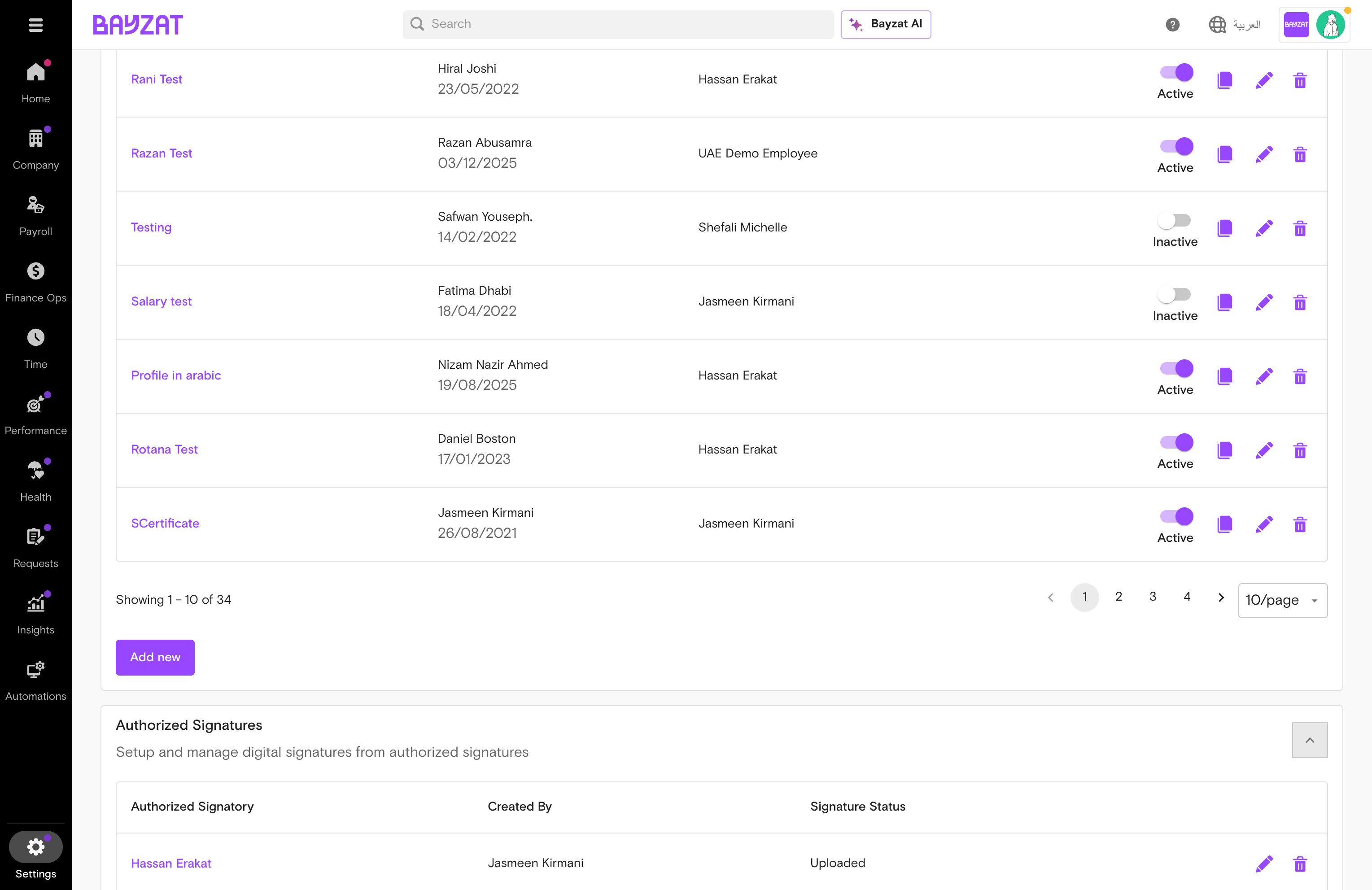
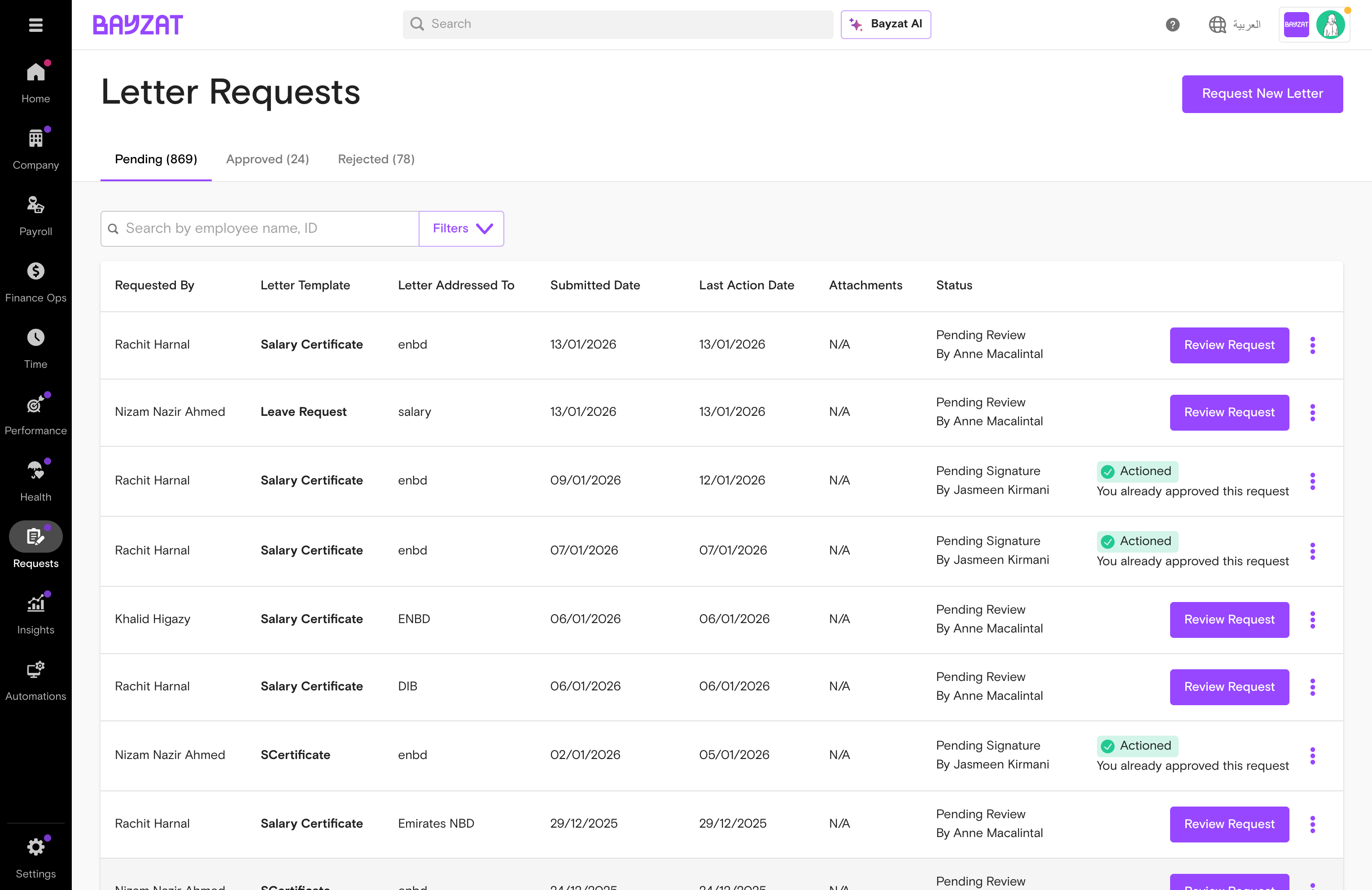
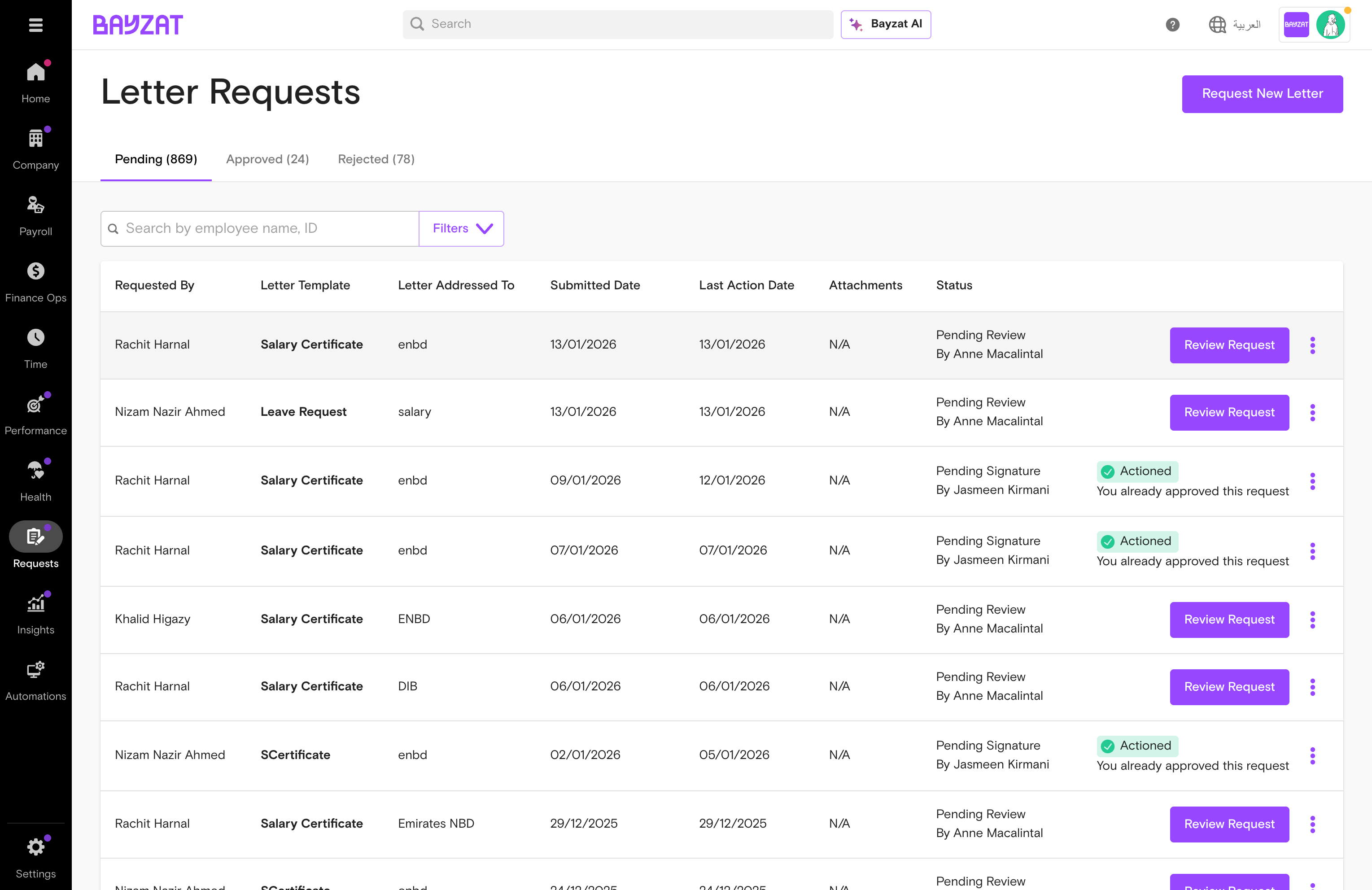
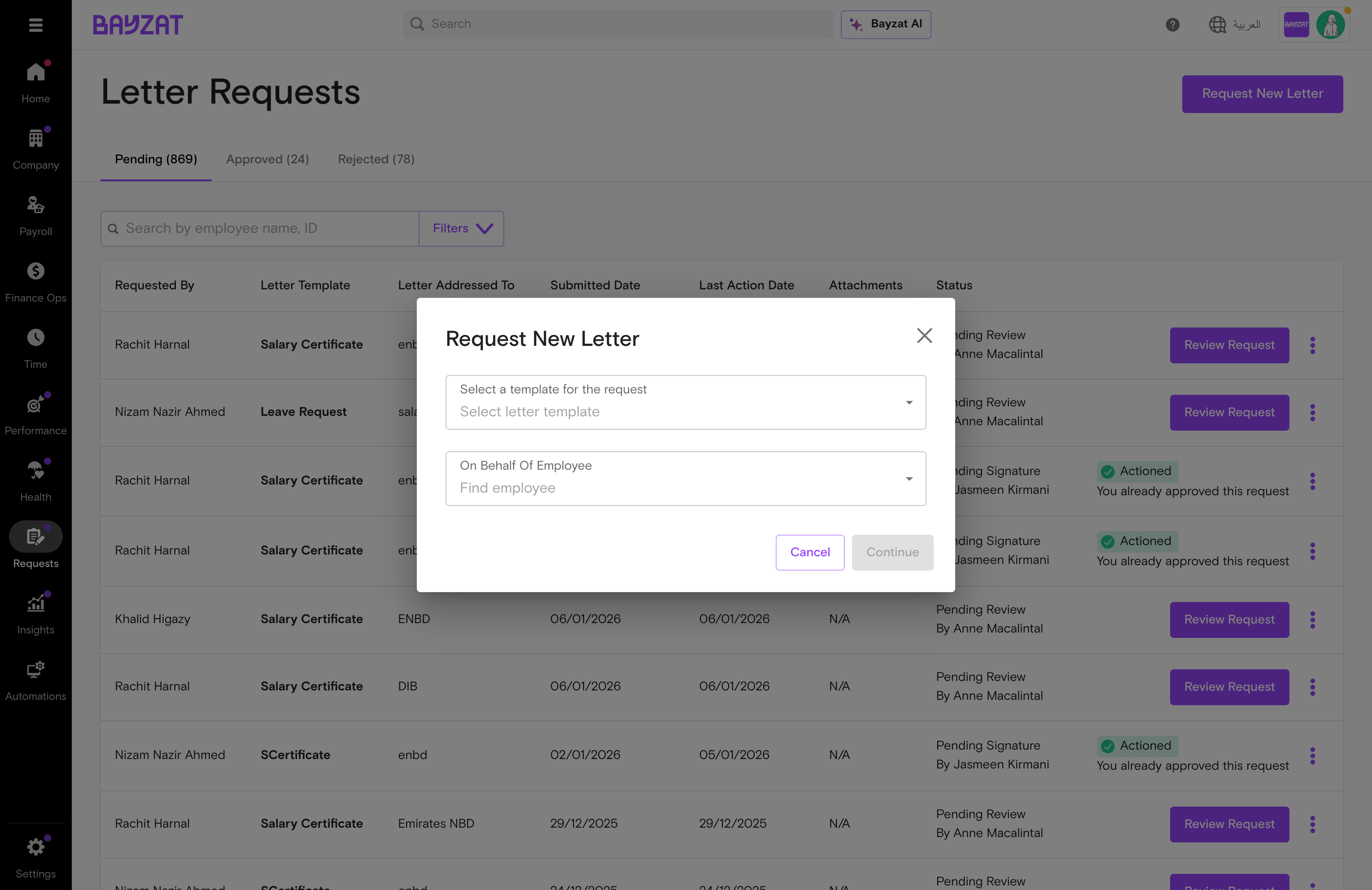
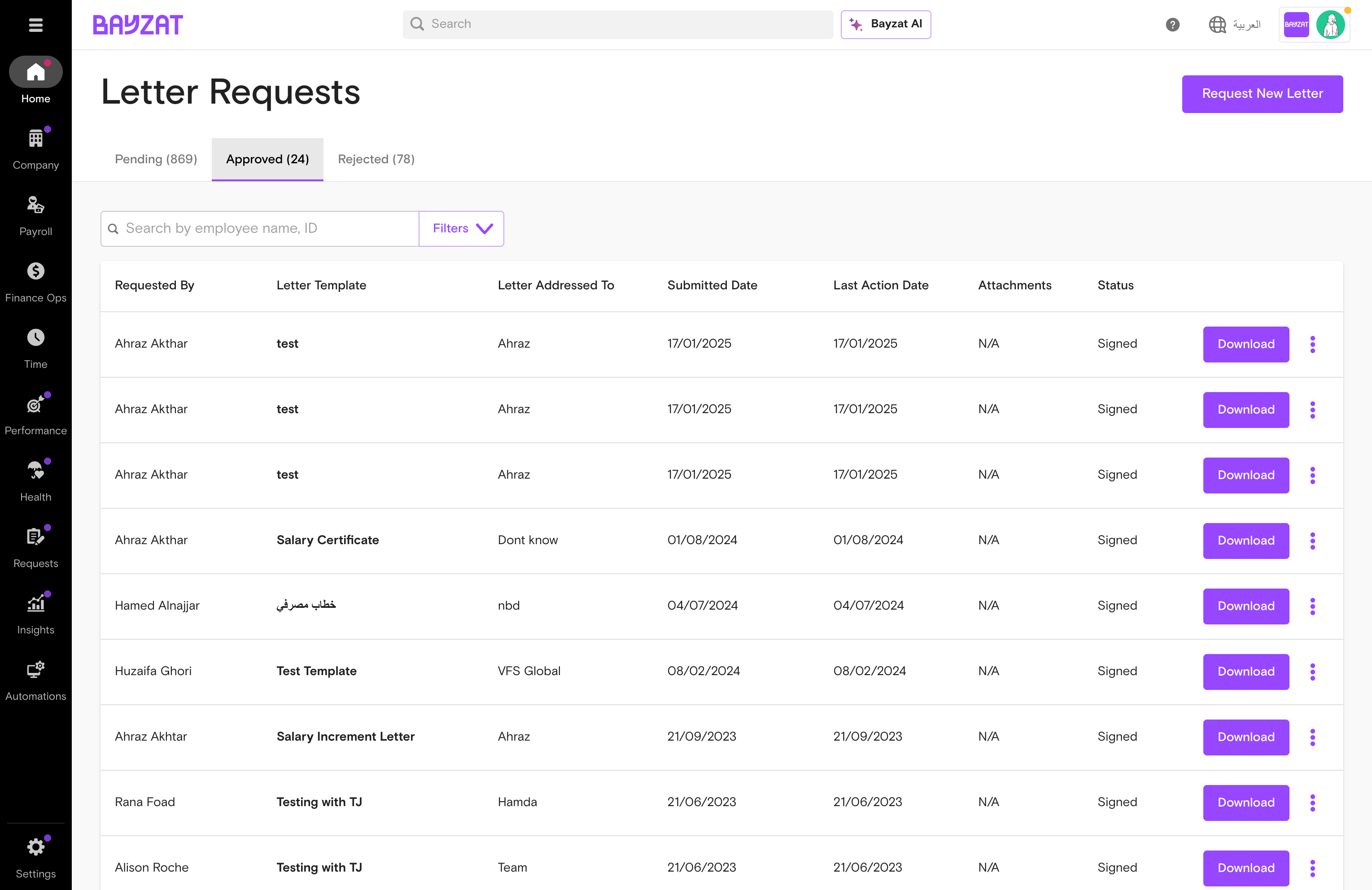
Set up the letter request module so employees can request formal letters — salary certificates, experience letters, NOCs — with automated approval and digital signatures.
Steps
1
Navigate to Letter Settings
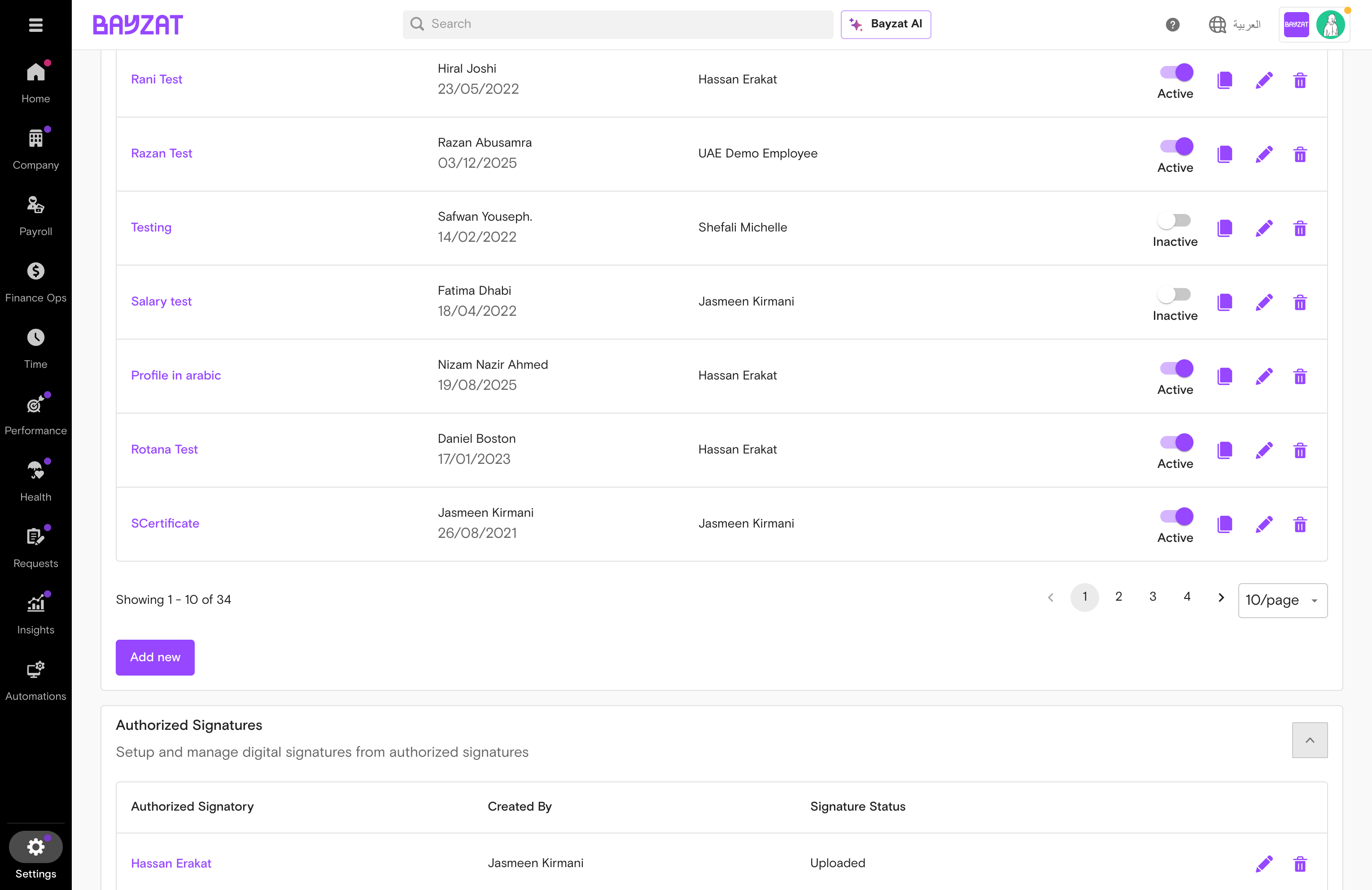
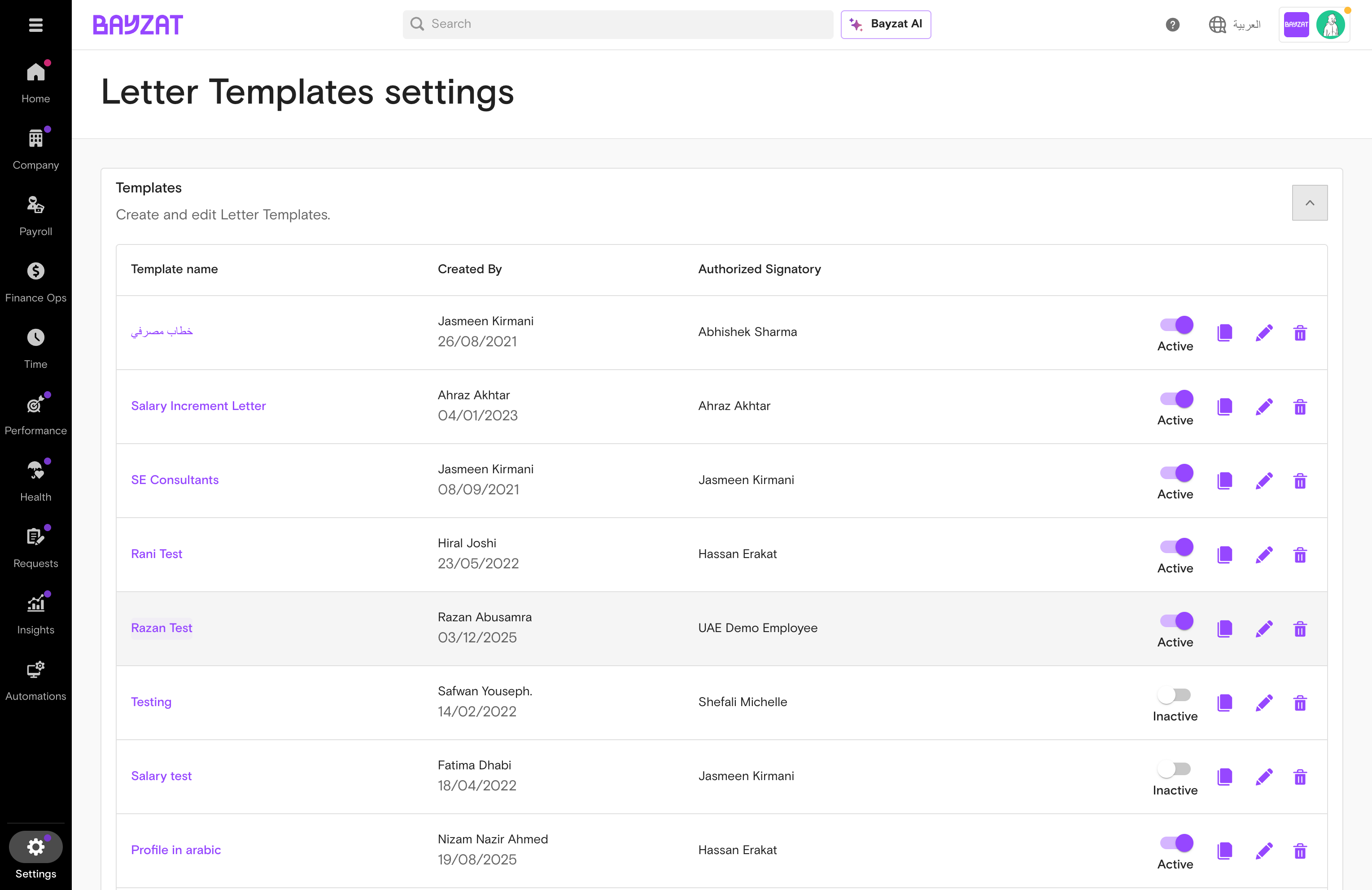
Settings → Letters → Letter Templates.
Settings→Letters→Letter Templates
Letter templates settings page
2
Build the template in the Letter Editor
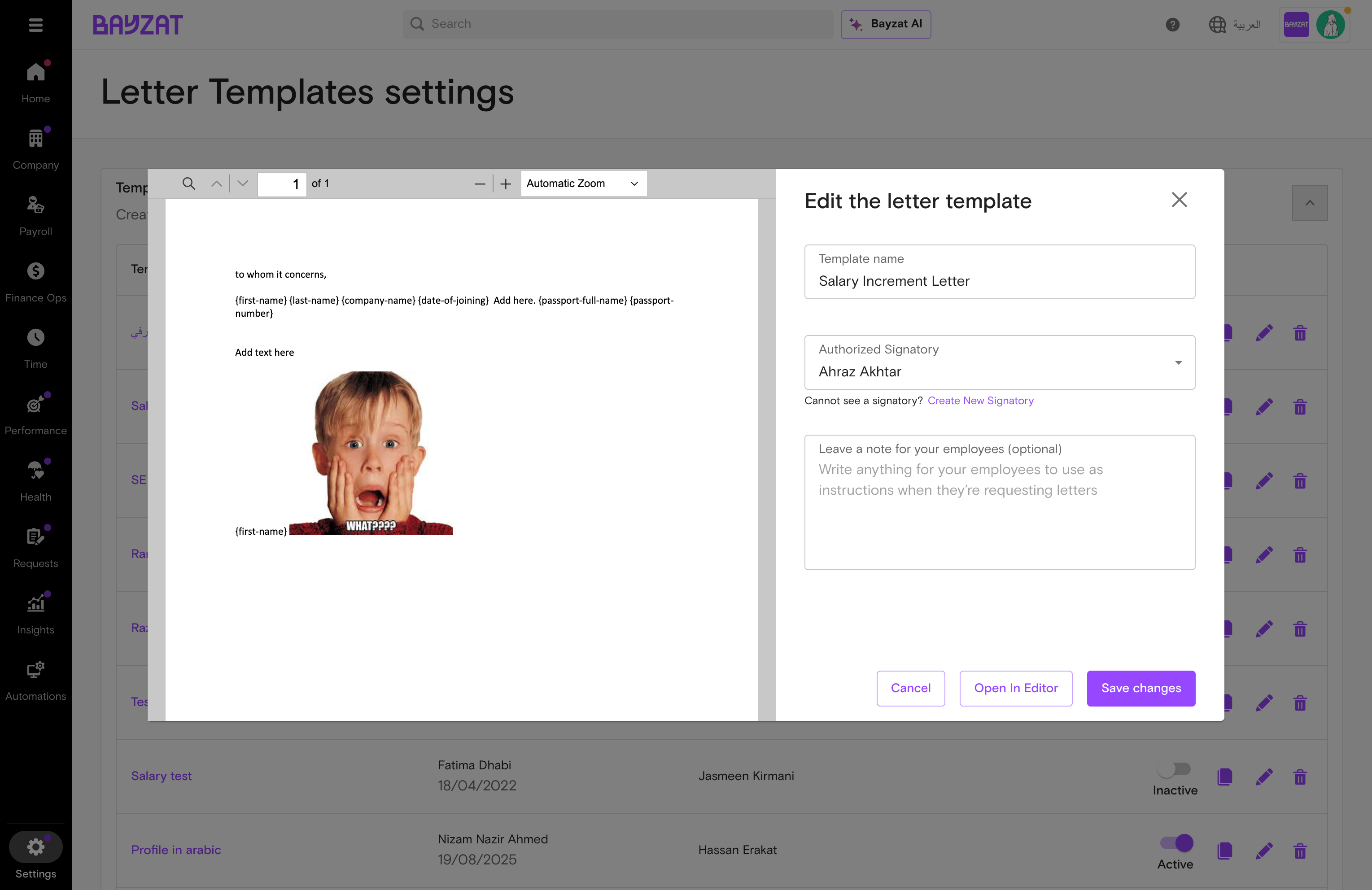
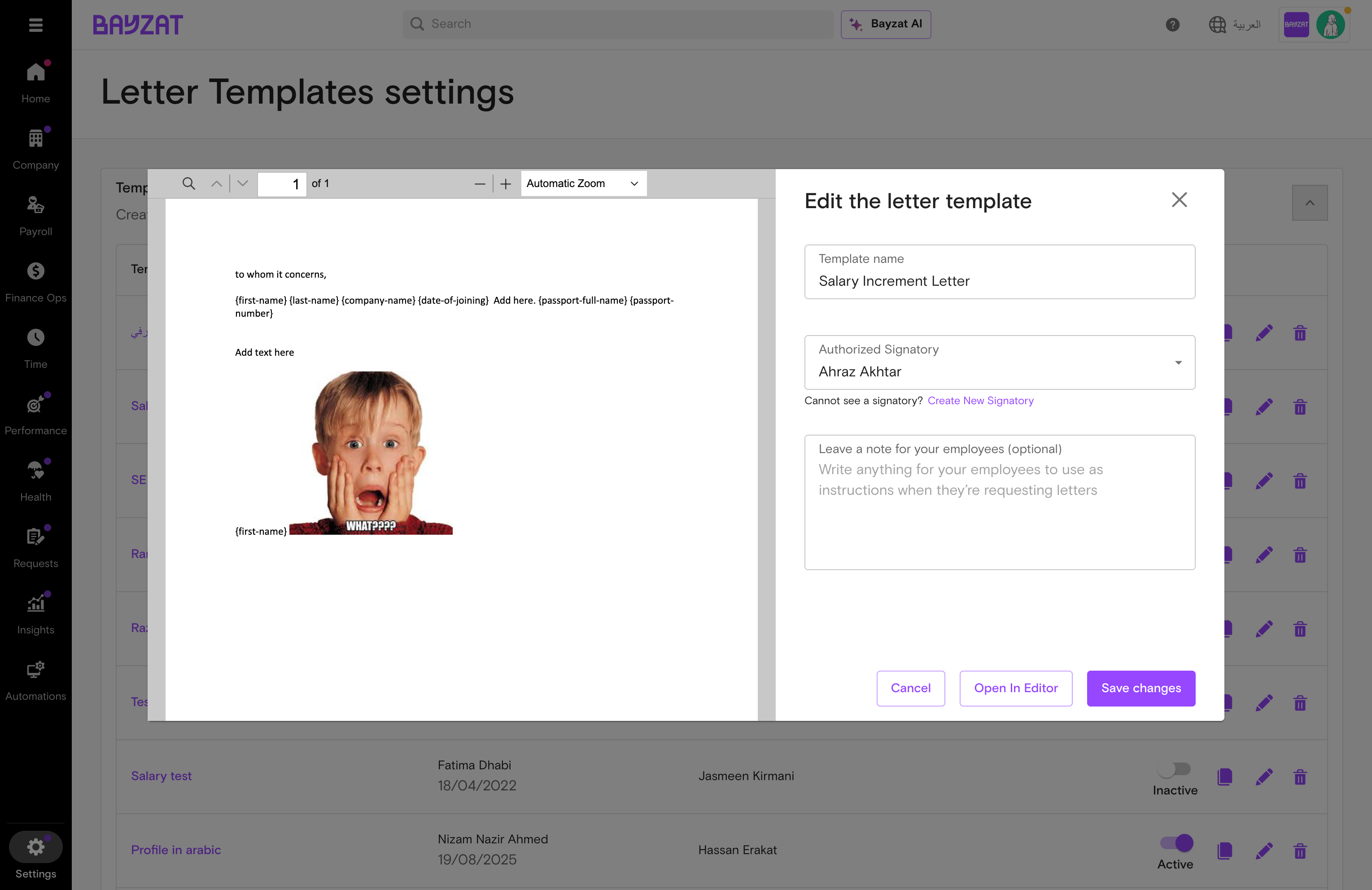
Click Add new template (or the Edit pencil on an existing one) to open the Letter Editor. Enter the template name, select the Authorized Signatory, and add an optional employee note.
Editor toolbar lets you upload an existing Word template, undo/redo, insert images, tables, and links, bookmark sections, generate a table of contents, set headers and footers, add page numbers or page breaks, and use the Find function. An integrated text editor on the right panel handles font, size, bold, italic, and underline formatting. Default format is A4, Arial; additional fonts are available via Google Fonts.
Variables panel (left side) contains a search bar and categorized groups: Most Commonly Used, Personal Details, Work Details, Document Details, and Payroll Details. Click any variable to insert it as a {variable-name} placeholder that auto-populates with employee data when the letter is generated — from 80+ variables across name, nationality, DOB, job title, department, employee ID, joining date, salary, Emirates ID, passport, visa, and custom fields.
Admin actions at the top right: Save Template, Preview (see the final document with sample data), Print, and More Options (⋮) which contains Make a copy, Download PDF, and Close Editor.
Letter template editor
3
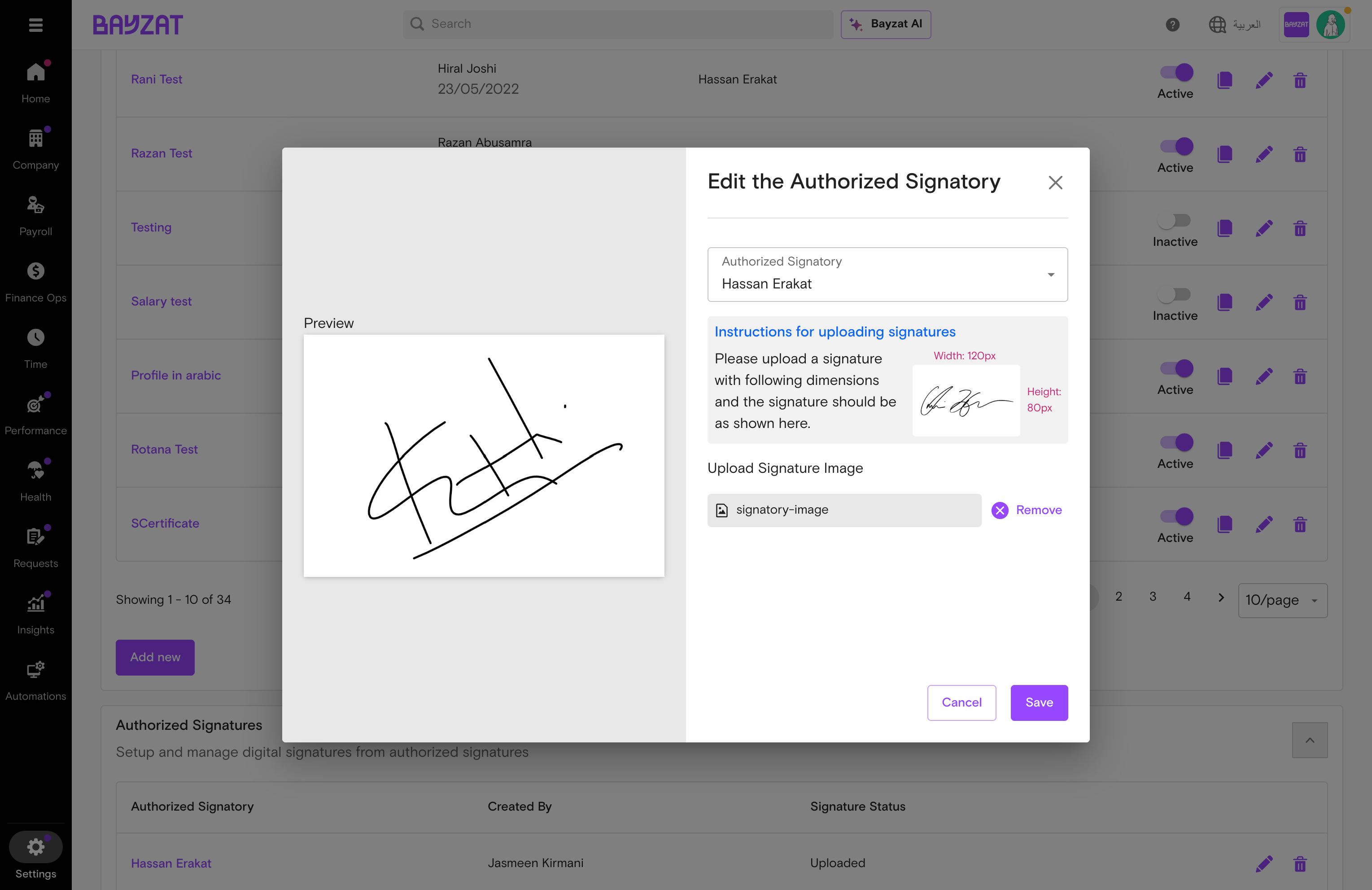
Configure authorized signatories
Settings → Letters → Authorized Signatories. Add the person who will sign letters — upload their signature image.
Settings→Letters→Authorized Signatories
Authorized signatures list
4
Assign the signatory to the template and save
There is no separate approval flow for letter requests. Once the template is configured with the authorised signatory assigned, the letter is ready for use. Employees raise a request and HR approves directly from the Letters queue — no additional approval flow setup is required.
Letter requests approval workflow
💡 Letter templates support Arabic and English. Add both versions to the same template for bilingual letters.
Connect Bayzat events to automated actions — Slack alerts, email notifications, task creation — so your team operates without constant manual follow-up.
Steps
1
Navigate to Workflows
Automations → Workflows. All active and inactive workflows listed.
Automations→Workflows
Workflows main page
2
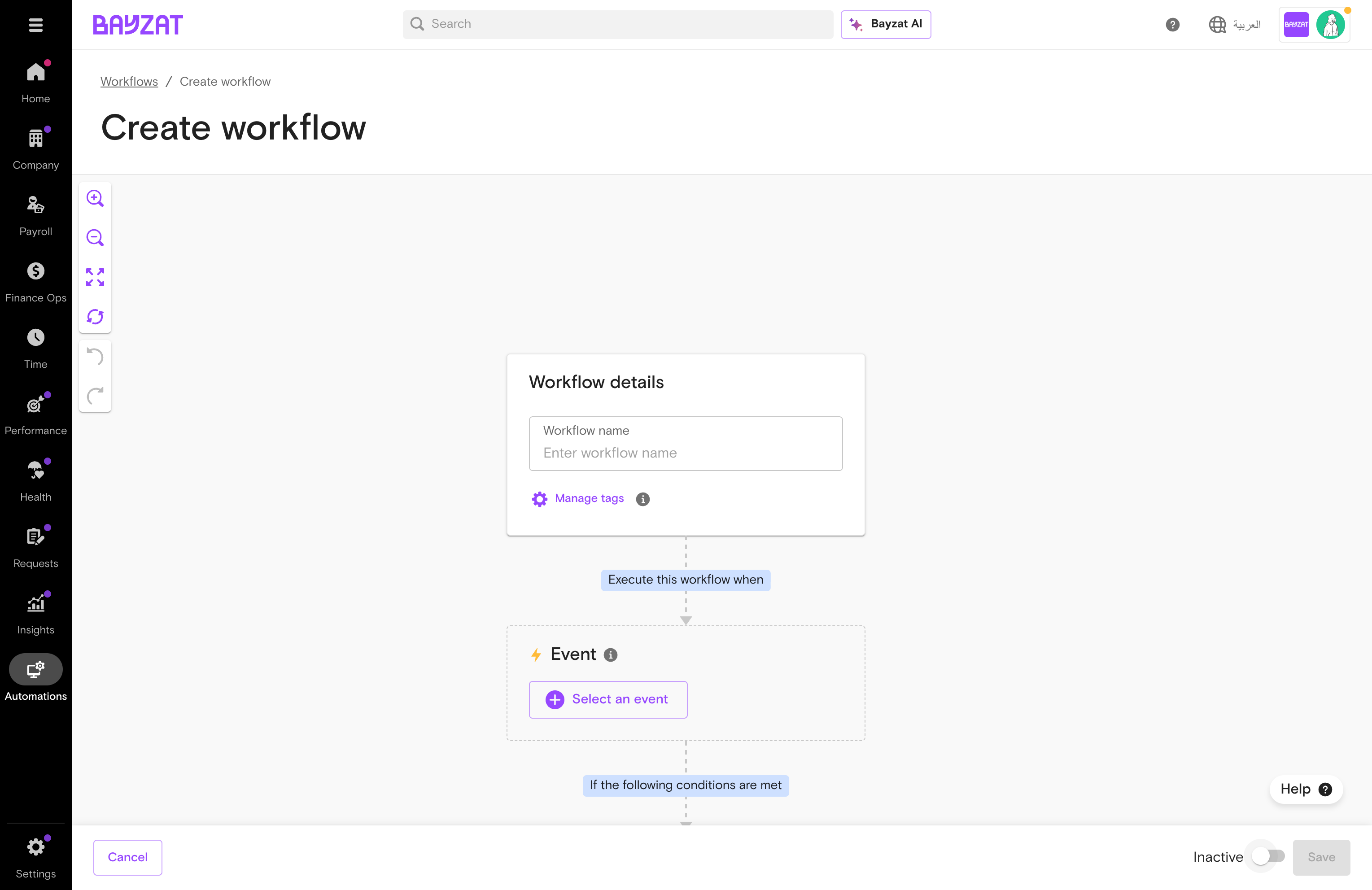
Create a new workflow
Click + Create workflow. Give it a name. Build a trigger (when) and actions (what happens).
Create workflow form
3
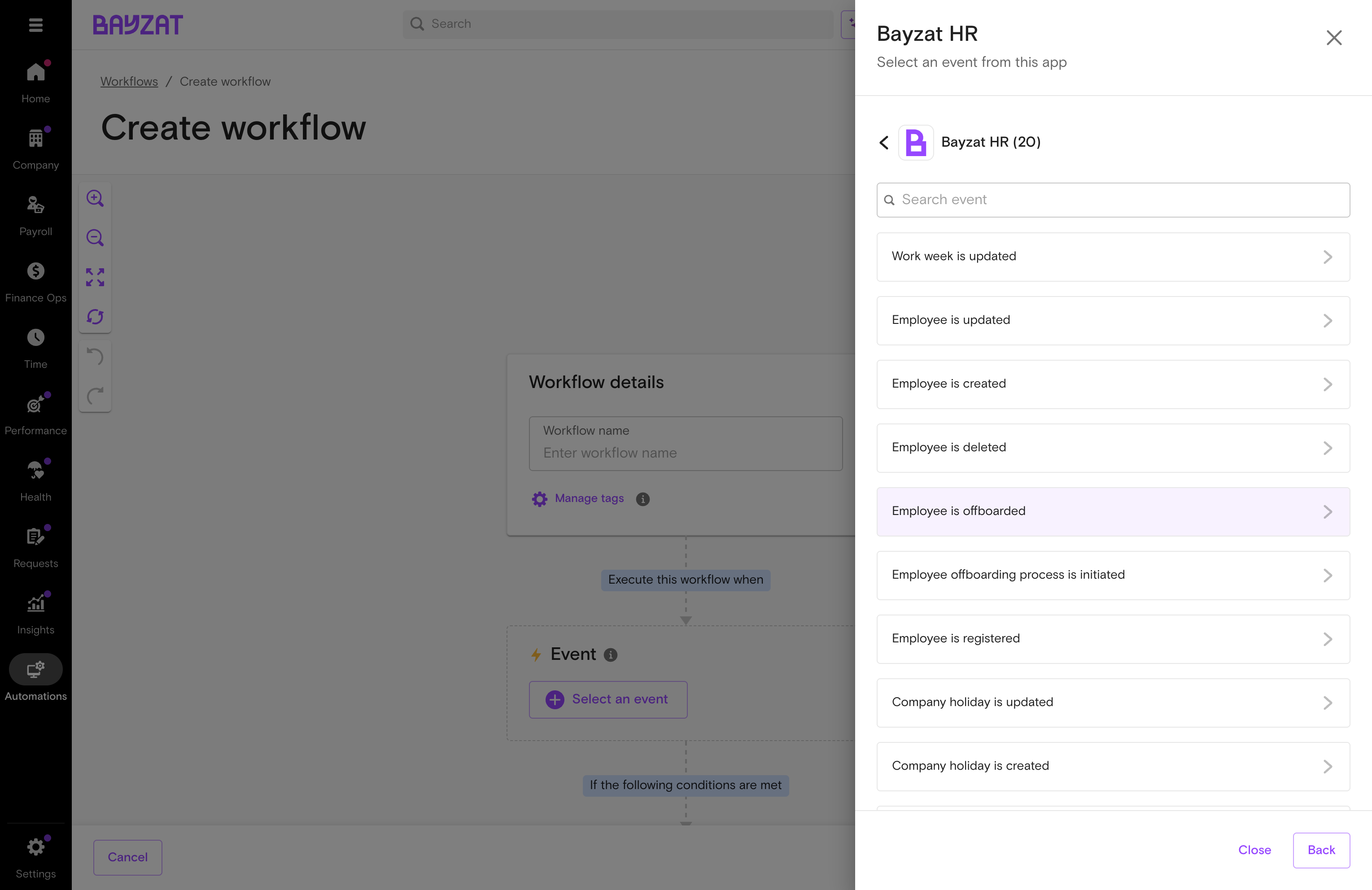
Select trigger and event — then add an action
Choose the Bayzat module and specific event that fires the workflow. Then add an action. Example use case: trigger 'Employee is created' → action 'Send email' → use merge tags to include the employee's name, start date, and department — this automatically notifies IT and Finance whenever a new hire is added. Click Activate to go live. Always test with a dummy record first.
 alt="Asset form" loading="lazy">